
Summarise this article with:
Google Maps accepts coordinates directly in its search bar. Paste them in and press Enter; a pin drops on the exact spot. No app, no plugin, no conversion step needed on desktop or mobile.
The Four Formats Google Maps Accepts
Google's own help documentation lists three numeric coordinate formats, plus a fourth system called Plus Codes. All work in the desktop search bar and in the mobile app.
A quick rule before the examples: always put latitude first, longitude second. Use periods for decimals. Use a comma only to separate latitude from longitude.
The examples below all point to the same place: the Eiffel Tower in Paris (latitude 48.8584, longitude 2.2945).
Format 1: Decimal Degrees (DD)
This is the format you will encounter most often. It is a plain number with a decimal, positive for North and East, negative for South and West.
48.8584, 2.2945Paste that into the search bar and hit Enter. Google drops a pin immediately.
Format 2: Degrees, Minutes, Seconds (DMS)
DMS uses degree symbols, single-quote marks for minutes, and double-quote marks for seconds, followed by a cardinal direction letter. This is the format older GPS devices and printed maps use.
48°51'30.2"N 2°17'40.2"EThe two halves (latitude and longitude) are separated by a space, not a comma. Google Maps parses this automatically and converts the display to decimal degrees internally.
Format 3: Degrees Decimal Minutes (DDM)
DDM keeps whole-number degrees but uses decimal minutes. Some marine GPS units and aviation charts output this format.
48 51.5028, 2 17.670The degree symbol is optional. Google Maps accepts the plain-number version.
Format 4: Plus Codes
Plus Codes are alphanumeric location codes developed by Google as a short alternative to coordinates. They look like CFHG+2P, Paris and encode a specific area at street level.
To use one:
- If you are already near the location: Enter just the short code, e.g.
CFHG+2P. - If you are elsewhere: Add the city or town, e.g.
CFHG+2P, Paris.
You can find the Plus Code for any spot by clicking on it in Google Maps and reading the code in the info card at the bottom.
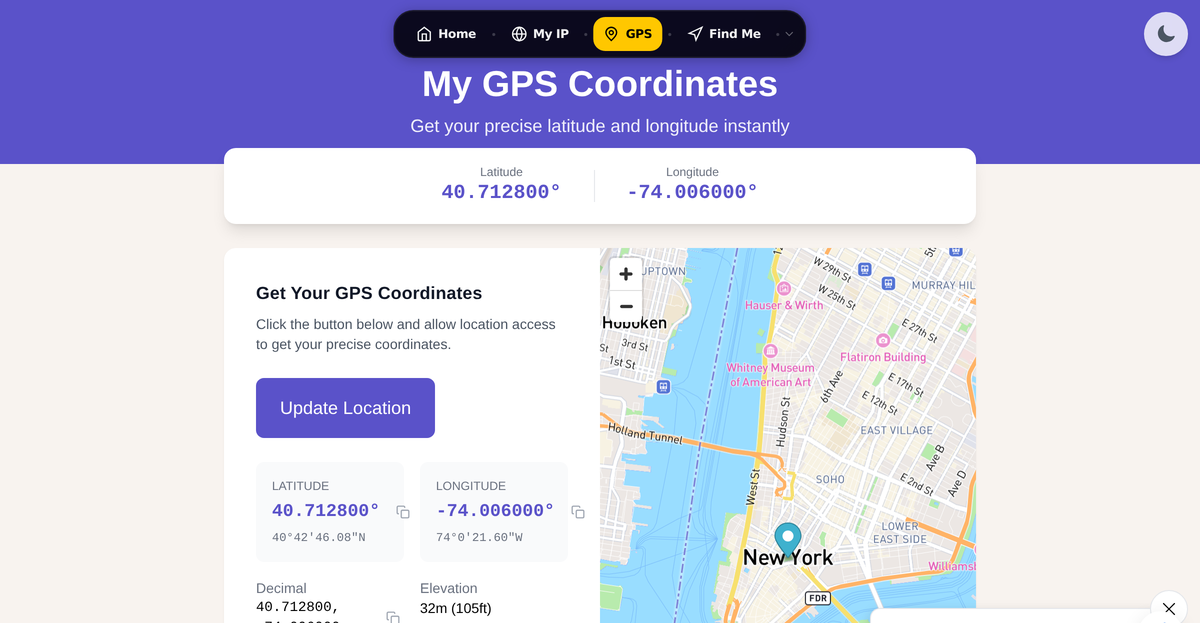
If you are not sure what format your coordinates are in, paste them into our GPS Coordinates tool or the Coordinate Converter to see them reformatted and verify they look right before searching.
Step-by-Step: Desktop (Browser)
- Open maps.google.com.
- Click the search bar at the top left.
- Type or paste your coordinates in any of the four formats above.
- Press Enter.
Google drops a red pin on the location. From the sidebar you can click Directions to navigate there, Save to bookmark it, or Share to send a link.
Step-by-Step: Android
- Open the Google Maps app.
- Tap the search bar at the top.
- Type or paste your coordinates.
- Tap the result card that appears below the bar.
The map centers on the pin. Tap Directions to start navigation.
Step-by-Step: iPhone and iPad
- Open the Google Maps app.
- Tap the search bar.
- Enter coordinates. Decimal degrees works most reliably on iOS; if DMS gives trouble, convert to DD first.
- Tap the result.
My rule: copy the coordinates from whatever message or document sent them to you, then long-press the search bar and tap Paste. Typing DMS symbols on a phone keyboard is fiddly and prone to typos.
Entering Coordinates as a URL
You can build a Google Maps link directly, which is useful for emails, documents, or saved bookmarks.
Show a pin on a location:
https://www.google.com/maps/search/?api=1&query=48.8584,2.2945Open directions to a location:
https://www.google.com/maps/dir/?api=1&destination=48.8584,2.2945Open directions with both origin and destination:
https://www.google.com/maps/dir/?api=1&origin=40.7128,-74.0060&destination=48.8584,2.2945Note: When encoding these URLs for use in code, the comma must be written as %2C. In a plain browser address bar, the literal comma works fine.
Hemisphere and Sign Reference
| Situation | Latitude | Longitude |
|---|---|---|
| Northern Hemisphere | Positive, or use N in DMS | any |
| Southern Hemisphere | Negative, or use S in DMS | any |
| Eastern Hemisphere | any | Positive, or use E in DMS |
| Western Hemisphere | any | Negative, or use W in DMS |
Valid ranges: latitude is -90 to 90, longitude is -180 to 180. If your longitude falls outside -180 to 180, the format is likely wrong or the values are swapped.
Most US locations have a positive latitude (North) and a negative longitude (West). For example, New York City is roughly 40.7128, -74.0060.
Troubleshooting: Why Google Maps Cannot Find Your Coordinates
If Maps says it cannot find the location, run through these checks in order:
- Latitude before longitude. The most common mistake. Swap the two numbers if the pin lands on the wrong continent.
- Periods for decimals. The value
48,8584reads as two separate integers in some locales. Write it as48.8584. - Check the sign. A negative latitude puts you in the Southern Hemisphere; a negative longitude puts you in the Western Hemisphere. Wrong sign = wrong side of the world.
- Range check. Latitude must be between -90 and 90. Longitude must be between -180 and 180. Anything outside those bounds is invalid.
- Stray characters. Remove anything that is not a number, decimal point, comma (between lat and lon), or cardinal letter (N/S/E/W) unless you are using DMS with its symbols.
If your coordinates show the right country but the wrong city, the values may be reversed. See why your IP location shows the wrong city for related context on location accuracy, and our IP geolocation accuracy guide for how map coordinates differ from network-based location.
Converting Between Formats
If someone hands you DMS coordinates and you need decimal degrees, or vice versa, use our Coordinate Converter. It handles DD, DMS, and DDM in both directions without manual arithmetic.
For finding coordinates of a place you already know: search the address in Google Maps, right-click (or long-press on mobile), and the decimal-degree coordinates appear at the top of the context menu. You can also use Find My Location to capture your current position in multiple formats.
Related reading: How to Find Your Latitude and Longitude and Decimal Degrees vs DMS Explained.
FAQ
Can I enter GPS coordinates into Google Maps without the degree symbol?
Yes. For decimal degrees (e.g. 48.8584, 2.2945) no symbols are needed at all. For degrees decimal minutes (e.g. 48 51.5028, 2 17.670) the degree symbol is optional and Google parses the plain-number version. Only the DMS format strictly needs the degree symbol, single-quote, and double-quote for Google to recognize it correctly.
Why do my coordinates point to the ocean instead of the right location?
The most likely cause is that latitude and longitude are swapped. Longitude can reach up to 180 degrees, so a longitude value entered in the latitude field can land you far off in the ocean. Swap the two numbers and search again. A negative sign error is the second most common cause: a missing minus sign on a Western-hemisphere longitude moves the pin to Asia.
Does Google Maps accept UTM or MGRS coordinates?
Not directly. Google Maps search does not parse UTM (e.g. 33T 697922 5408468) or MGRS grid references. Convert those to decimal degrees first using our Coordinate Converter, then paste the result into Maps.
How do I share a Google Maps location as coordinates rather than a link?
Open Google Maps, click or tap the spot you want to share. The decimal-degree coordinates appear in the info card at the bottom. On desktop, right-clicking any map location puts the coordinates at the top of the context menu; clicking them copies them to your clipboard. On mobile, tap and hold the spot, then tap the coordinates shown to copy them. You can paste those directly into a message, and the recipient can paste them straight into Maps.
Sources

WhatIsMyLocation Team
Our team of network engineers and web developers builds and maintains 25+ free networking and location tools used by thousands of users every month. Every article is reviewed for technical accuracy using real-world testing with our own tools.
Related Articles
Try Our Location Tools
Find your IP address, GPS coordinates, and more with our free tools.