
Summarise this article with:
The Short Version
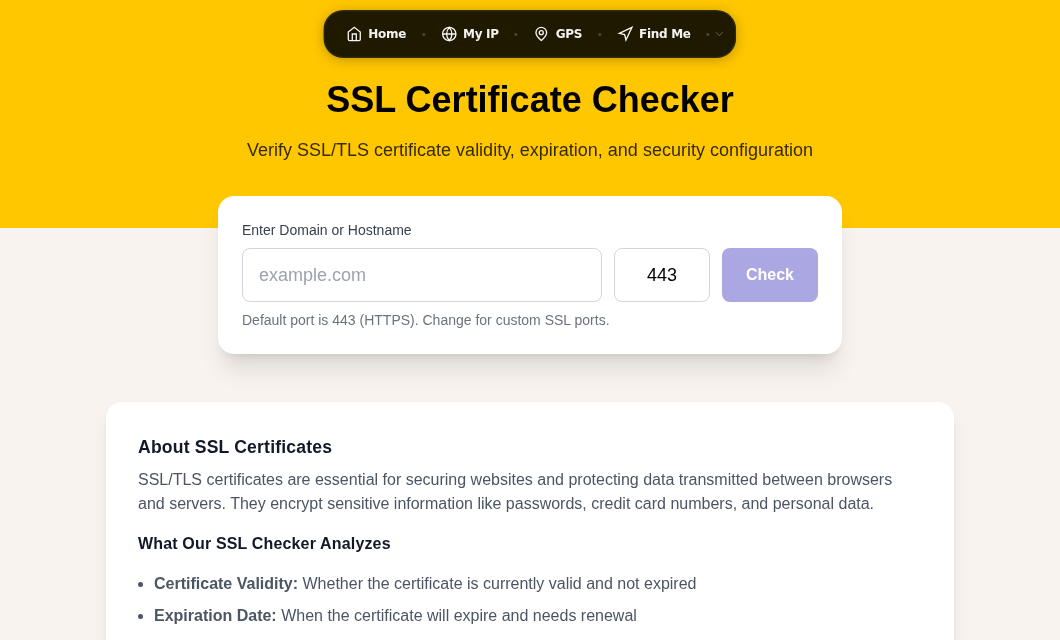
When your browser shows a padlock, a TLS certificate has verified the server's identity and established an encrypted channel for your data. TLS 1.3 is the current norm for that encryption, completing the setup in a single round trip. You can inspect any site's certificate right now with our SSL Checker.
SSL vs. TLS: What the Terms Actually Mean
People say "SSL certificate" out of habit. SSL (Secure Sockets Layer) is the older protocol family; TLS (Transport Layer Security) is what every browser and server actually uses today. The lineage matters because each version has a very different security record:
- SSL 2.0 (1995): First public release, now fully deprecated and blocked by every modern browser.
- SSL 3.0 (1996): Also deprecated since 2015 due to the POODLE vulnerability.
- TLS 1.0 (1999) and TLS 1.1 (2006): Both deprecated in 2020 by major browsers.
- TLS 1.2 (2008): Still supported and secure when properly configured.
- TLS 1.3 (2018): The current standard. Faster and simpler than all predecessors, and now supported by roughly 75% of the top 150,000 websites according to Qualys SSL Pulse data. Around 90% of browsers negotiate it by default when the server offers it.
When you see "SSL certificate" in a hosting panel or certificate vendor's site, the underlying technology is TLS. "SSL/TLS certificate" is the accurate label.
What a Certificate Contains
An SSL/TLS certificate is a digitally signed file that binds a public key to an identity. Open any certificate and you will find:
- Subject: The domain name (and optionally the organization) the cert was issued for
- Issuer: The Certificate Authority (CA) that signed it
- Validity period: "Not Before" and "Not After" dates
- Public key: Used in the handshake to establish encryption keys
- Subject Alternative Names (SANs): Additional domains and subdomains covered
- Signature algorithm: How the CA signed the cert (typically SHA-256 with RSA or ECDSA)
- Key Usage / Extended Key Usage: What the certificate is permitted to do
Our SSL Checker retrieves and displays all of these fields for any hostname you enter.
How the TLS 1.3 Handshake Works
The handshake is the negotiation that happens before any page data is sent. TLS 1.3 cuts it to a single round trip (1-RTT), saving roughly 50-100 ms per new connection compared to TLS 1.2's two round trips.
Step 1: Client Hello
Your browser opens the connection by sending a Client Hello that includes:
- The TLS versions it supports
- Supported cipher suites
- A random value (Client Random)
- Key share parameters for Diffie-Hellman, sent speculatively so the server can act immediately
Step 2: Server Hello and Certificate
The server picks the TLS version and cipher suite, sends back its own key share, and delivers its certificate in the same flight. Because the client already sent its key material, the server can derive the shared secret and begin encrypting its own messages immediately.
Step 3: Certificate Verification
Your browser checks four things:
- The certificate was signed by a trusted CA in its root store
- The certificate has not expired
- The domain matches the Subject or a SAN entry
- The certificate has not been revoked (checked via OCSP or CRL)
Step 4: Finished
Both sides confirm the handshake with an encrypted Finished message. Everything after this point, including the HTTP request and response, is encrypted with symmetric session keys derived from the Diffie-Hellman exchange.
0-RTT resumption: For returning visitors, TLS 1.3 supports a zero-round-trip mode where the client can send application data in its very first message. This is the fastest possible reconnect, though it comes with replay-attack trade-offs that servers must account for.
In my testing against a handful of sites, switching a server from TLS 1.2-only to TLS 1.3 brought measurable improvements in time-to-first-byte, particularly on mobile connections where latency is high.
Types of Certificates
Domain Validation (DV)
The CA confirms only that you control the domain, via a file on the server, a DNS record, or an email to the domain's admin contact.
- Issuance: Minutes to hours
- Cost: Free (Let's Encrypt) to around $50/year
- Best for: Personal sites, blogs, APIs, small businesses
Organization Validation (OV)
The CA also verifies the organization's legal existence through business registration documents and sometimes phone calls.
- Issuance: 1-3 business days
- Cost: Roughly $50-$200/year
- Best for: Business sites, e-commerce
Extended Validation (EV)
The most rigorous check: legal, physical, and operational existence are all verified through documentation. Browsers once showed a green address bar for EV sites, but Chrome, Firefox, and Safari all removed that indicator between 2018 and 2019 after research showed users did not make better security decisions because of it. Today EV certs show the same padlock as DV and OV; the organization name appears only in certificate details.
- Issuance: 1-2 weeks
- Cost: $100-$500/year
- Best for: Banks, financial institutions, large enterprises that want the identity assertions in the certificate itself
Wildcard Certificates
A single certificate for *.example.com covers www.example.com, mail.example.com, api.example.com, and any other first-level subdomain. It does not cover sub.api.example.com.
Multi-Domain (SAN) Certificates
One certificate can cover multiple distinct domain names using Subject Alternative Names, for example example.com, example.org, and example.net on one cert.
Certificate Validity: A Fast-Changing Landscape
Certificate lifetimes have been shrinking by CA/Browser Forum mandate. This is the timeline you need to know as of mid-2026:
| Milestone | Max Validity |
|---|---|
| Before March 15, 2026 | 398 days |
| March 15, 2026 (now in effect) | 200 days |
| March 15, 2027 | 100 days |
| March 15, 2029 | 47 days |
The CA/Browser Forum ballot passed in April 2025 with 29 votes in favour and zero opposition. The logic is straightforward: shorter lifetimes mean compromised certificates are mistrusted sooner, and automated renewal removes the operational burden that longer lifetimes were originally designed to offset.
Let's Encrypt already issues 90-day certificates by default. Since May 2026 it also offers an opt-in 45-day profile. The 90-day default will shrink further to 64 days in early 2027, ahead of the Forum's broader deadlines.
Certificate Authorities and the Chain of Trust
Trust works in a hierarchy:
- Root CAs are the foundation. Their certificates are pre-installed in your browser and OS trust store. Organizations like DigiCert, Sectigo, and ISRG (which operates Let's Encrypt) are root CAs. ISRG's primary root is
ISRG Root X1, valid until 2035. - Intermediate CAs are signed by root CAs and handle day-to-day issuance. Keeping roots offline in hardware security modules and using intermediates for routine signing limits the blast radius if an intermediate is ever compromised: the root CA can revoke it without invalidating all trust.
- End-entity certificates live on web servers. Signed by an intermediate, they form the leaf of the chain.
When your browser validates a certificate, it builds a chain from the site's certificate through one or more intermediates up to a root it already trusts. Every link must be valid for the chain to pass.
Our SSL Checker shows the full chain for any domain, from the end-entity certificate to the root.
Let's Encrypt
Let's Encrypt launched in late 2015 and made HTTPS genuinely free for everyone. Before it, certificate costs and renewal complexity left huge swaths of the web unencrypted. Let's Encrypt's ACME protocol (RFC 8555) automates issuance and renewal: set it up once, and certificates renew without manual intervention. By late 2025, Let's Encrypt was issuing around 10 million certificates per day, accounting for over 54% of all public TLS certificates in Q1 2026.
The ACME Renewal Information (ARI) extension, now supported by Let's Encrypt, lets clients receive a suggested renewal window from the CA. This spreads renewal load and makes automated renewals more resilient, a key enabler as lifetimes continue to shrink.
Common SSL/TLS Errors
ERR_CERT_DATE_INVALID
The certificate has expired. With the current 200-day maximum and typical 90-day Let's Encrypt certs, this usually means automated renewal failed or was never set up.
ERR_CERT_AUTHORITY_INVALID
The certificate was not signed by a CA in your browser's trust store. Causes include self-signed certificates, a missing intermediate in the server's chain configuration, or a man-in-the-middle attack.
ERR_CERT_COMMON_NAME_INVALID
The hostname you visited does not match any domain in the certificate's Subject or SANs. Common cause: a cert covers www.example.com but the server also needs to respond to example.com and forgot to add it as a SAN.
ERR_SSL_VERSION_OR_CIPHER_MISMATCH
The server and browser could not agree on a protocol version or cipher suite. Usually points to a misconfigured server still offering only deprecated TLS versions.
Mixed Content Warnings
The page loaded over HTTPS but pulled in a resource (image, script, stylesheet) over plain HTTP. Browsers block active mixed content (scripts) outright. You can check what headers your server sends with our HTTP Headers tool, including Strict-Transport-Security (HSTS), which forces browsers to always use HTTPS for a domain.
How to Inspect a Certificate
In Your Browser
Chrome (120+): Click the tune/slider icon left of the URL bar, then "Connection is secure." You will see tabs for General, Details, and Certification Path.
Firefox: Click the padlock left of the URL, then "Connection secure." Firefox opens a certificate viewer showing the full chain in a tabbed layout.
DevTools (any browser): Open DevTools (F12), go to the Security tab, and click "View certificate" for the same information plus TLS connection details.
With the SSL Checker
Our SSL Checker retrieves the certificate, chain, and supported TLS versions for any domain without installing anything. It flags expiry dates, configuration issues, and missing chain certificates.
From the Command Line
# Show full certificate text
openssl s_client -connect example.com:443 -servername example.com </dev/null 2>/dev/null | openssl x509 -text -noout

# Check only the expiry date
openssl s_client -connect example.com:443 -servername example.com </dev/null 2>/dev/null | openssl x509 -enddate -noout
My rule: if I am setting up a new server, I run the openssl expiry command the day after configuration to confirm the cert is what I think it is, then verify again via the SSL Checker from outside my network to confirm the full chain is being served correctly.
Frequently Asked Questions
Does the padlock mean a site is safe to use?
The padlock confirms the connection is encrypted and the server holds a valid certificate for the domain. It says nothing about whether the organization behind the site is trustworthy or whether the site is free from malware. Phishing sites routinely use valid DV certificates. Check the domain name itself carefully before entering sensitive information.
What happens when a certificate expires?
Browsers block access with a warning page (ERR_CERT_DATE_INVALID in Chrome). Visitors cannot proceed without clicking through an explicit "proceed anyway" override, which most users will not do. Automated renewal via ACME or a hosting platform's built-in renewal is the only reliable fix for high-traffic sites.
What is the difference between DV, OV, and EV certificates?
All three encrypt traffic identically. The difference is identity verification. DV proves domain control only. OV adds verification of the organization's legal existence. EV adds extensive documentation checks on legal, physical, and operational standing. Browsers now show the same padlock for all three; EV organization details appear only in the certificate itself, not in the address bar.
Why is my site showing a certificate error after I installed a new cert?
The most common cause is a missing intermediate certificate. Your server must send the full chain from its end-entity cert to a trusted root. Sending only the leaf certificate works on some clients (which can fetch intermediates via AIA) but fails on others. The SSL Checker will tell you whether your chain is complete. The second most common cause is a name mismatch: the cert's SANs do not include every hostname your server answers to.
How does Let's Encrypt issue certificates for free?
Let's Encrypt is operated by the nonprofit Internet Security Research Group (ISRG) and funded by sponsorships from browser vendors, cloud providers, and foundations. Issuance is automated entirely through the ACME protocol: you run a client (Certbot is the reference client) that proves domain control automatically and handles renewal. Because there is no human review and no paper certificates, the marginal cost per certificate approaches zero. The catch is that the certificates are DV only and currently valid for 90 days (moving to shorter lifetimes through 2027).
Sources
- CA/Browser Forum certificate validity ballot and roadmap - Certera
- TLS 1.3 adoption statistics 2026 - SSLInsights
- Let's Encrypt decreasing certificate lifetimes to 45 days announcement
- Let's Encrypt chains of trust and ISRG Root X1 documentation
- HTTPS adoption statistics 2026 - W3Techs
- EV certificate green bar removal - SSL Dragon

WhatIsMyLocation Team
Our team of network engineers and web developers builds and maintains 25+ free networking and location tools used by thousands of users every month. Every article is reviewed for technical accuracy using real-world testing with our own tools.
Related Articles
Try Our Location Tools
Find your IP address, GPS coordinates, and more with our free tools.