
Summarise this article with:
The Baseline
Securing a home network takes about an hour and most of it happens inside your router's admin panel. The steps below are ordered by impact: router hardening first, then Wi-Fi encryption, network segmentation, DNS, and devices. You do not need networking expertise. These are the same fundamentals network professionals apply, adapted for a home setup.
The U.S. average household now connects around 21 devices, up from 15 just two years ago. Each device is a potential entry point, so the payoff for spending that hour is high.
Home-Network Hardening Checklist
Router
- Change the default admin username and password (use 16+ characters)
- Update router firmware, or enable auto-update if supported
- Disable Remote Management (WAN access to the admin panel)
- Disable UPnP (lets malware punch holes through your firewall)
- Disable WPS PIN mode (the PIN has a known brute-force flaw)
- Confirm no unauthorized port-forwarding rules exist
Wi-Fi
- Set encryption to WPA3, or WPA2/WPA3 transitional if you have older devices
- Use a Wi-Fi password of 16+ characters
- Change the default SSID to something that does not reveal the router model or your name
Segmentation
- Enable a guest network and put all IoT devices on it
- Keep computers, phones, and NAS drives on the main network
DNS
- Set a secure DNS resolver at the router level (Quad9 9.9.9.9 or Cloudflare 1.1.1.1)
- Enable DNS over TLS or DNS over HTTPS on the router if supported
Devices
- Enable auto-update on every device, including smart TVs and IoT gear
- Use a password manager; never reuse passwords
- Enable two-factor authentication on email, banking, and cloud accounts; use an authenticator app, not SMS
- Confirm the host firewall is on (Windows: Settings, Privacy and Security, Windows Security, Firewall and network protection; macOS: System Settings, Network, Firewall)
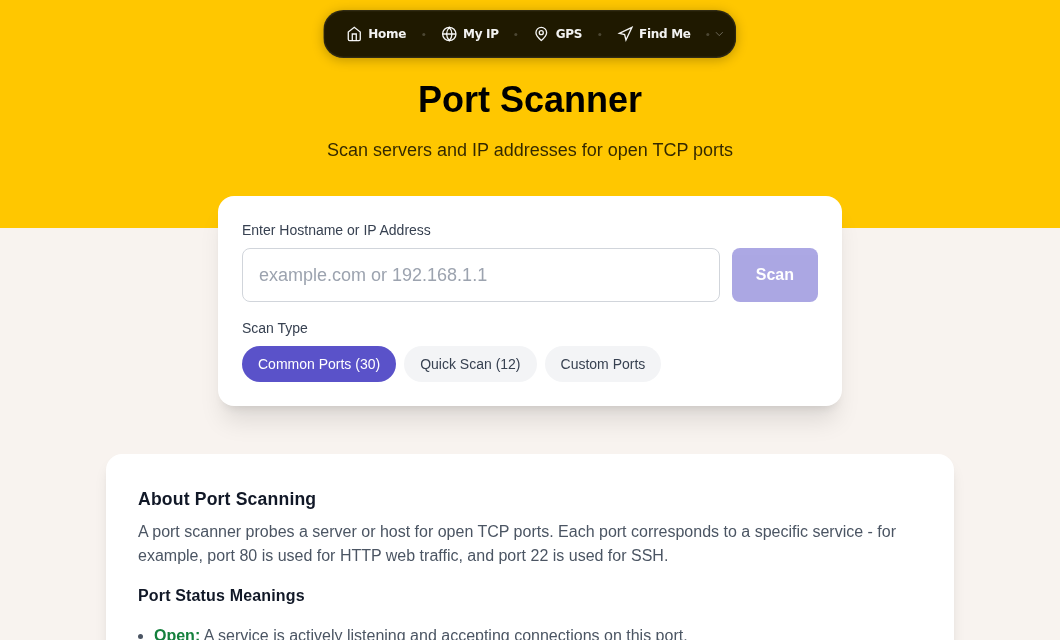
Run the Port Scanner against your public IP afterward. Only ports you have intentionally forwarded should appear open.
Router: The Foundation
Your router is the only device that sits between the internet and everything else you own. If it is compromised, everything behind it is exposed.
Default credentials are publicly catalogued for every router model. Log into the admin panel (usually 192.168.1.1 or 192.168.0.1), change both the admin password and username if the interface allows it, and pick something you would not find in a dictionary.
Firmware patches close real vulnerabilities. VPNFilter and Mirai both exploited unpatched router firmware. Check for updates monthly or flip on auto-update. If your router's manufacturer stopped issuing firmware, the device is a liability and should be replaced.
Disable Remote Management (sometimes labeled "web access from WAN"). It opens the admin panel to the entire internet, which is almost never what you need.
Disable UPnP. UPnP requires no authentication, so any device on your network, including one that is already infected with malware, can instruct your router to open external ports. The Canadian Centre for Cyber Security recommends disabling it on all home routers.
Disable WPS PIN mode. The eight-digit WPS PIN has a design flaw that cuts the search space roughly in half, making it crackable in hours with freely available tools like Reaver. The Pixie Dust attack can recover the PIN in seconds on vulnerable chipsets. The only safe option is to turn WPS PIN off entirely. Push-button WPS (PBC) is less risky but still unnecessary if you have already set a strong password.
Wi-Fi: Encryption and Passwords
WPA3 is the current standard and is worth enabling if your router supports it. It replaces the WPA2 handshake with SAE (Simultaneous Authentication of Equals), which requires a live exchange with the router for each password guess, making offline dictionary attacks impractical. It also provides forward secrecy, so capturing past traffic is useless even if your password is later exposed. For a deeper look at how WPA3 compares to WPA2, see the Wi-Fi security and WPA3 guide.
Use WPA2/WPA3 transitional mode if you have older devices that do not support WPA3. Do not use WPA2-TKIP (deprecated) or WEP (broken: crackable in minutes).
Your Wi-Fi password should be at least 16 characters. A passphrase like "correct-horse-battery-staple" is both strong and memorable. The default SSID reveals your router model, which tells attackers which known vulnerabilities to probe. Rename it to something neutral.
Hiding the SSID does not improve security. Hidden SSIDs are visible to any Wi-Fi scanner, and hiding them actually causes your devices to actively broadcast the name while searching for it.
Network Segmentation: Guest Network for IoT
Isolating IoT devices on a separate guest network is one of the highest-leverage steps you can take. Many IoT devices run outdated firmware with known vulnerabilities, use weak default credentials, and phone home without encryption. On the same network as your laptop, a compromised smart thermostat can be used as a pivot point to attack your other devices.
Enable the guest network on your router and move all smart speakers, smart plugs, robot vacuums, game consoles, and smart TVs onto it. Guests go there too. The guest network provides internet access but blocks cross-network traffic, so a compromised device on it cannot see your NAS or your work computer.
If your router supports VLANs (common on Ubiquiti, Netgate pfSense, and OPNsense hardware), you can create finer-grained segments with per-segment firewall rules.
DNS-Level Protection
Changing your DNS resolver at the router level protects every device on the network, including IoT devices that do not expose individual DNS settings.
Quad9 (9.9.9.9) is a Swiss nonprofit that blocks queries to known malicious and phishing domains using aggregated threat intelligence. Cloudflare (1.1.1.1) is a fast general-purpose resolver; Cloudflare for Families (1.1.1.3) adds malware blocking.
Unencrypted DNS lets your ISP, and anyone on the network path, see every domain you visit. DNS over HTTPS and DNS over TLS encrypt those queries. Many modern routers support DoT natively. For a detailed walkthrough, see the DNS over HTTPS guide.
Monitoring Your Network
Regularly review the connected-device list in your router's admin panel. Look for devices you do not recognize or device names that seem off. If you disabled UPnP, also review port-forwarding rules: entries you did not create may have been added before you disabled it.
Some routers show per-device traffic graphs. Spikes at 3 AM or unexpectedly high usage from an IoT device are worth investigating. Use Traceroute to identify where suspicious traffic is being routed.
In my testing, the easiest way to catch problems early is to run a port scan on your own public IP once after initial setup to confirm your baseline, then again after any router change.
Device Security
Network security is only as strong as its least-updated device. Enable automatic updates everywhere: computers, phones, tablets, and smart TVs. Most attacks exploit vulnerabilities that have patches available; the patch just was not applied.
Use a password manager (Bitwarden and 1Password are popular; KeePass is open-source and offline). Reusing a password means that any data breach on any site can compromise every other account that shares it.
Use an authenticator app for two-factor authentication, not SMS. SIM-swapping attacks let criminals convince a carrier to port your phone number to a SIM they control, then intercept your SMS codes. The FBI received nearly 1,000 SIM-swap complaints in 2024 alone with losses exceeding $26 million. An authenticator app (Authy, Google Authenticator, or a hardware key like a YubiKey) eliminates that risk.
You can check whether your VPN or DNS setup is leaking identifying information using the VPN Leak Test and DNS Leak Test tools.
Physical Security
Physical access bypasses every software control. Keep your router somewhere visitors cannot easily reach. A factory reset takes seconds and undoes all your hardening. If your router has USB ports or Ethernet jacks in guest-accessible areas, disable those features or ports in the admin panel.
Backup and Recovery
Export your router's configuration after setup. If you ever suspect a compromise, a factory reset followed by configuration restore is faster than rebuilding from memory.
Back up computers and phones regularly. If ransomware encrypts a device, a recent backup means you pay nothing. Know the factory-reset procedure for your router before you need it.
FAQ
Should I disable UPnP on my router?
Yes. UPnP allows any device on your network to instruct the router to open ports, with no authentication required. Malware regularly exploits this to establish outbound backdoors. The Canadian Centre for Cyber Security and most security researchers recommend disabling it. If you run a game console that needs specific ports, open them manually using static port-forwarding rules instead.
Is it safe to leave WPS on?
No, if your router uses WPS PIN mode. The eight-digit PIN has a design flaw that cuts the brute-force search space in half, and tools like Reaver can recover it in hours. The Pixie Dust attack reduces that to seconds on certain chipsets. Push-button WPS (PBC) is lower risk but still unnecessary. Disable WPS and use your password to connect new devices.
Do smart-home devices need their own separate network?
Yes. IoT devices are among the least-patched and most routinely compromised devices in a home. Putting them on an isolated guest network means that if a smart speaker or thermostat is breached, the attacker cannot pivot to your laptop or cloud-storage account. Most consumer routers support a guest network that provides internet access while blocking cross-network traffic.
Why is my router's default password dangerous?
Default router credentials are documented publicly for every model. An attacker on your Wi-Fi network (or from the internet if you have Remote Management enabled) can try the documented defaults and get full control of your network in seconds. Change the admin password to something unique and at least 16 characters long before doing anything else.
How do I know if someone else is on my network?
Log into your router's admin panel and check the connected-device list. Compare what you see against devices you recognize. Unfamiliar device names, unexpected MAC addresses, or more devices than you own are red flags. You can also run the Port Scanner against your public IP to check what services are visible from outside your network.
Sources
- Wi-Fi Protected Setup (WPS) Vulnerable to Brute-Force Attack - CISA
- VU#723755 - WiFi Protected Setup (WPS) PIN brute force vulnerability - CERT/CC
- What is UPnP? Yes, It's Still Dangerous - UpGuard
- Universal plug and play (ITSAP.00.008) - Canadian Centre for Cyber Security
- Quad9 threat blocking - Quad9.net
- Block connections to your Mac with a firewall - Apple Support

WhatIsMyLocation Team
Our team of network engineers and web developers builds and maintains 25+ free networking and location tools used by thousands of users every month. Every article is reviewed for technical accuracy using real-world testing with our own tools.
Related Articles
Try Our Location Tools
Find your IP address, GPS coordinates, and more with our free tools.