
Summarise this article with:
Your laptop or desktop has no GPS chip. Every GPS-equipped iPhone or Android that ever drove past a WiFi router has silently logged that router's position. When your laptop wants to know where it is, it looks up those same routers in the same database and triangulates. That is the core mechanism, and understanding it explains every quirk you will encounter below.
How Desktop Location Works
Three methods are available to desktop operating systems, in order of accuracy:
- WiFi positioning. Your device scans visible access points, sends their identifiers to the OS location service, and gets back coordinates built from Apple's own crowd-sourced database (on macOS) or Microsoft's service via partners like HERE and Skyhook (on Windows). In practice, the estimate lands within tens of meters in dense urban areas and much further in rural spots where few GPS-equipped devices have passed by.
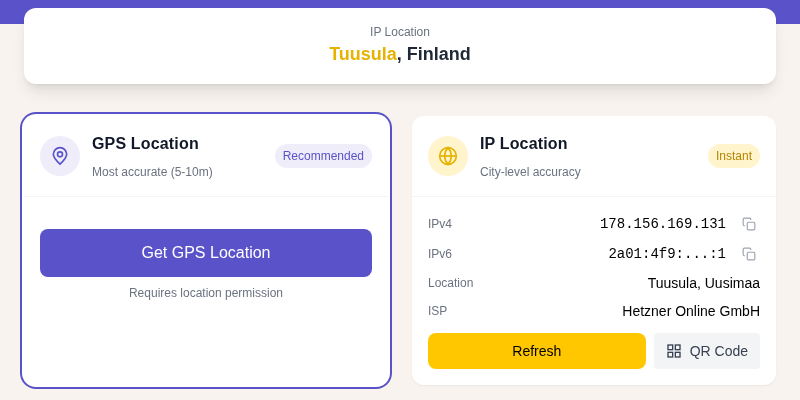
- IP geolocation. Your public IP address maps to a city or metro area. This is the fallback when WiFi is off or when you are on Ethernet only. It is also the method used by My IP without any permission prompt, and why it can show the wrong city for some users. See Why Does My IP Show the Wrong City? for a full breakdown.
- Ethernet with no WiFi. Only IP geolocation is available. Do not expect block-level accuracy here.
In my testing on a wired desktop, IP geolocation landed a few kilometers from my real address. Turning on WiFi (even without switching to it from Ethernet) immediately pulled the location to within walking distance.
The key insight for accuracy: keep WiFi radio enabled even if you prefer wired Ethernet for your internet connection. The radio does its location scan passively without routing any of your traffic through the wireless network.
For a deeper look at how GPS and IP location compare, see GPS vs IP Location: What Is the Difference?
Finding Your Location on macOS
Enable Location Services on macOS Sequoia
On macOS 13 and later, System Preferences was replaced by System Settings:
- Click the Apple menu and choose System Settings
- Click Privacy and Security in the sidebar
- Click Location Services
- Toggle Location Services to on
- Scroll the app list below and enable location for the apps you want (Safari, Maps, etc.)
Check Your Location via Maps
- Open the Maps app
- Click the location arrow button (bottom right of the map)
- Your estimated position appears on the map
Allow Location in Safari
- Visit Find My Location
- Safari shows a permission prompt; click Allow
- If the prompt does not appear, go to Safari, then Settings, then Websites, then Location and set the permission for the site
Note: If Location Services is off system-wide, Safari reports "Location unavailable" regardless of browser-level permission.
Finding Your Location on Windows 11
Enable Location Services on Windows 11
- Press Windows key + I to open Settings
- Click Privacy and security
- Under "App permissions," click Location
- Toggle Location services to on
- Toggle Let apps access your location to on
- Enable location for specific apps in the list below
Microsoft notes that when location is enabled, Windows sends de-identified WiFi access point information to its location service to improve accuracy over time.
Check Your Location via Maps
- Open the Maps app
- Click Show my location
- Your position appears (accuracy depends on available WiFi networks)
Allow Location in Edge or Chrome
- Visit Find My Location
- The browser shows a location permission prompt; click Allow
- If you previously blocked location, click the lock or info icon in the address bar, find Location, and change it to Allow, then reload the page
Browser Permission Settings
The OS toggle and the browser toggle are separate. If both are not on, location requests fail.
Chrome
- Visit the page that needs your location
- Click the lock icon in the address bar
- Set Location to Allow
- Reload the page
Or go to Chrome Settings, then Privacy and security, then Site settings, then Location to set a global default.
Firefox
- When a site requests location, Firefox shows a one-time prompt with a "Remember this decision" checkbox
- If you need to change a saved decision, click the permissions icon (shield or lock) in the address bar, find Location, and click the X to clear it, then reload and re-allow
- For global settings: Settings, then Privacy and Security, then Permissions, then Location
Safari
- Safari, then Settings, then Websites, then Location
- Find the site in the list and choose Allow
- For sites not listed, set "When visiting other websites" to Ask
Edge
- Click the lock icon in the address bar
- Click Site permissions
- Set Location to Allow
- Reload the page
Troubleshooting
"Location Unavailable" on Mac
- Confirm WiFi radio is on (even if you are using Ethernet for internet)
- Verify Location Services is toggled on in System Settings, then Privacy and Security, then Location Services
- Toggle Location Services off, restart the Mac, then toggle it back on
- Check that the system clock and time zone are set correctly (location services can fail with a badly wrong clock)
"Could Not Determine Location" on Windows
- Confirm the Location services toggle is on in Settings, then Privacy and security, then Location
- Run the location troubleshooter: Settings, then System, then Troubleshoot
- Verify the Windows Location service is running: open
services.mscand look for "Geolocation Service," then start it if stopped - Update wireless adapter drivers
Browser Keeps Prompting for Permission
- Avoid incognito or private mode: saved permissions are not carried over in private sessions
- Clear site-specific settings and allow again with "Remember this decision" checked (Firefox) or by setting a per-site rule (Safari, Chrome, Edge)
Privacy Considerations
Desktop location is less precise than mobile GPS but still reveals real information. Apps that have been granted location access can see your neighborhood.
- WiFi positioning can place you within a block, which is enough to identify your home or workplace
- IP geolocation reveals your city and ISP to any site without a permission prompt
- Review which apps hold location permission periodically and revoke access from apps that do not need it
- A VPN shifts your visible IP to the provider's server, which breaks IP-based geolocation but does not affect WiFi positioning
Learn more at IP Geolocation Accuracy and How to Hide Your IP Address.
Using Our Tools on Desktop
- Find My Location: allow browser location for the best result, using WiFi positioning where available
- My IP: works without any permission, shows IP-based location
- GPS Coordinates: uses the browser Geolocation API, same as Find My Location
FAQ
Does my laptop have a GPS chip?
Most consumer laptops do not include a GPS receiver. Some business-class laptops (certain ThinkPads, for example) offer an optional GPS module, but it is rare and usually listed under the spec sheet. If your laptop does not list "GPS" or "GNSS" in its specifications, assume WiFi positioning is the best you have.
Why is my location wrong on my desktop computer?
The most common reason is Ethernet-only use with no WiFi radio active. Without WiFi access points to scan, the OS falls back to IP geolocation, which typically resolves to the metro area served by your ISP, not your actual address. Enable WiFi radio (you do not need to connect to a network) and try again. If location is still off, see Why Does My IP Show the Wrong City? for more causes.
How do I find my exact latitude and longitude on a Mac or Windows PC?
Use GPS Coordinates or Find My Location in your browser and allow location when prompted. The page returns your latitude and longitude using the browser Geolocation API, which calls the OS location service. For more on reading and sharing coordinates, see How to Find Latitude and Longitude.
Why does my Mac say location is unavailable even with WiFi on?
Check two things: first, confirm Location Services is toggled on in System Settings, then Privacy and Security, then Location Services, and that Safari or your browser is enabled in the app list. Second, confirm that you allowed the site in Safari Settings, then Websites, then Location. Safari blocks location at both levels independently, and both must be on.
Can I use location services on Windows 11 if I only have Ethernet?
Yes, but accuracy will be limited to IP geolocation, which resolves to your city or region rather than your street. For better results, enable your WiFi adapter (if your machine has one) even while staying on Ethernet for your actual internet connection. Windows uses nearby access point signals passively for positioning without changing your network traffic.
Sources
- Control access to the location of your Mac - Apple Support
- Windows location service and privacy - Microsoft Support
- Manage your location settings in Chrome - Google Chrome Help
- Does Firefox share my location with websites? - Mozilla Support
- Customize settings for each website in Safari on Mac - Apple Support
- WiFi Positioning Explained - TOPFLYtech

WhatIsMyLocation Team
Our team of network engineers and web developers builds and maintains 25+ free networking and location tools used by thousands of users every month. Every article is reviewed for technical accuracy using real-world testing with our own tools.
Related Articles
Try Our Location Tools
Find your IP address, GPS coordinates, and more with our free tools.