
Summarise this article with:
A MAC address is the permanent hardware identifier built into every network adapter. Your laptop, phone, smart TV, and router each have at least one. It handles delivery within your local network, while your IP address handles routing across the internet. The two work together on every packet you send, but they operate at completely different layers.
What MAC Stands For
MAC stands for Media Access Control. A MAC address is a 48-bit (6-byte) number assigned to a network interface controller (NIC) by the manufacturer. Every Ethernet adapter, Wi-Fi card, and Bluetooth radio gets one. The IEEE 802 standard defines the format.
The Standard Format
MAC addresses are written as six pairs of hexadecimal digits, separated by colons, hyphens, or (in Cisco gear) dots:
00:1A:2B:3C:4D:5E     (colon notation, common on Linux/macOS)
00-1A-2B-3C-4D-5E     (hyphen notation, common on Windows)
001A.2B3C.4D5E        (Cisco dot notation)
Six hex pairs = 48 bits = 2^48 possible addresses, roughly 281 trillion unique values.
OUI: The Manufacturer's Fingerprint
A MAC address splits cleanly into two halves:
| Bytes | Name | What It Identifies |
|---|---|---|
| First 3 bytes (24 bits) | OUI (Organizationally Unique Identifier) | The manufacturer |
| Last 3 bytes (24 bits) | Device-specific | That particular adapter |
The IEEE sells OUI blocks to manufacturers. Apple, Intel, Cisco, and every other network hardware maker own one or more OUIs. Each 24-bit OUI block covers roughly 16.7 million unique addresses, enough for a manufacturer's full product run under that prefix.
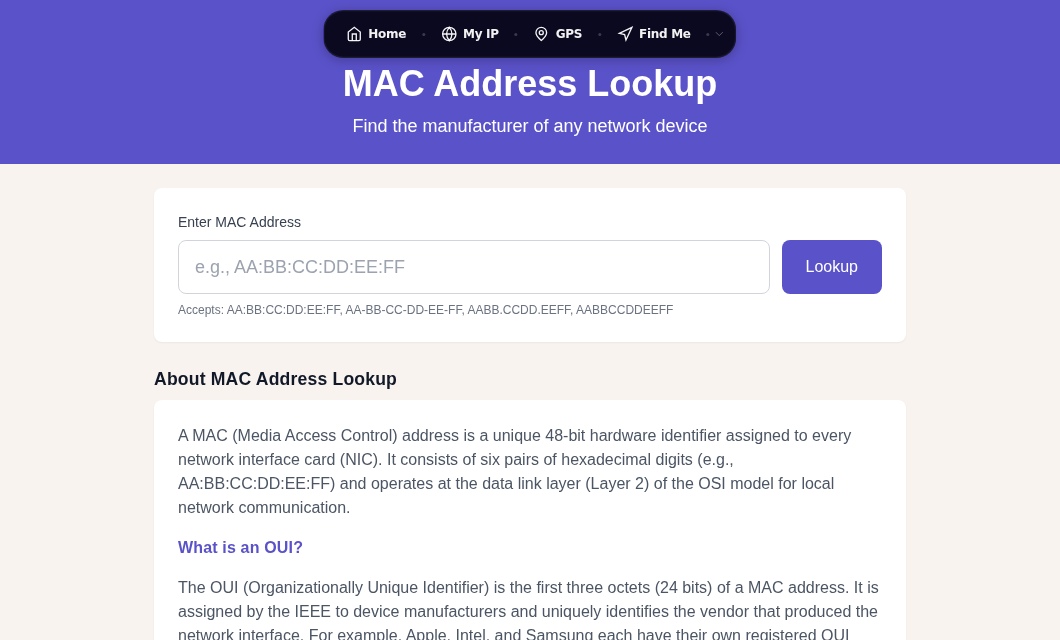
You can identify any adapter's maker by pasting its first three bytes into the MAC Lookup tool, which queries the live IEEE OUI registry. This is the same method network administrators use to spot unexpected devices on a corporate LAN.
Note: randomized MAC addresses use a locally administered address bit (the second-least-significant bit of the first byte is set to 1), so a lookup on a randomized address will not return a real manufacturer name. That bit is itself a signal that randomization is active.
MAC Address vs. IP Address
These two identifiers cause endless confusion because devices have both. They serve completely different purposes at different layers of the network stack.
| Feature | MAC Address | IP Address |
|---|---|---|
| OSI Layer | Layer 2 (Data Link) | Layer 3 (Network) |
| Scope | Local network segment only | Routable across the internet |
| Assignment | Burned in by manufacturer | Assigned by router or ISP |
| Changes? | No (unless randomized) | Yes, with network or location |
| Format | 48-bit hex (00:1A:2B:3C:4D:5E) | 32-bit decimal (192.168.1.1) or 128-bit hex (IPv6) |
| Purpose | Deliver frames hop by hop | Route packets end to end |
The key insight: MAC addresses change at every router hop, IP addresses do not. When your laptop sends a request to a web server, each router along the path strips the Ethernet frame, reads the IP destination, and wraps the packet in a fresh Ethernet frame addressed to the next router's MAC. By the time the packet reaches the web server, your original MAC address is long gone. The server sees only an IP address, not your hardware identifier.
This means websites cannot read your MAC address. Only devices on the same local network segment can see it. You can check your current public IP at /my-ip or get full geolocation details via IP Lookup.
How ARP Bridges the Two
ARP (Address Resolution Protocol) is the glue between Layer 2 and Layer 3. When your computer knows a destination IP address but not the corresponding MAC address, it broadcasts an ARP request: "Who has IP 192.168.1.1? Tell me your MAC." The device with that IP replies with its MAC address, and the result is cached in your local ARP table.
You can inspect your ARP table with:
# Windows, macOS, Linux (classic)
arp -a

# Linux (modern)
ip neigh show
ARP entries expire after a few minutes. When they do, the device sends another ARP broadcast to refresh the mapping.
How to Find Your MAC Address
Windows
Open Command Prompt and run:
ipconfig /allLook for "Physical Address" under your active adapter. The format is 00-1A-2B-3C-4D-5E. You can also go to Settings > Network and Internet > select your connection > Hardware properties.
macOS
Open Terminal and run:
ifconfig en0 | grep etheren0 is typically your primary Wi-Fi interface. Or go to System Settings > Network > select your connection > Details > Hardware.
Linux
ip link showLook for "link/ether" followed by the MAC address. The older ifconfig -a command also works and shows the address next to "ether" or "HWaddr."
iPhone (iOS 18)
Go to Settings > Wi-Fi, tap the info button next to your connected network, and look for "Wi-Fi Address." On iOS 18, you will also see the "Private Wi-Fi Address" toggle showing whether the displayed address is Off, Fixed, or Rotating.
Note: if Private Wi-Fi Address is set to Fixed or Rotating, the address shown is a randomized value, not your hardware MAC. More on this below.
Android (10 and later)
Go to Settings > Network and Internet > Wi-Fi, tap the connected network, then tap the gear or info icon. Look for "MAC address" or "Wi-Fi MAC address" in the detail panel. Exact menu labels vary by manufacturer.
Router Admin Panel
Log in to your router (commonly at 192.168.1.1 or 192.168.0.1) to see the MAC addresses of every connected device. This is the quickest way to spot an unfamiliar device on your home network.
MAC Randomization on Modern Phones
This is the biggest practical shift in MAC address behavior over the last five years. When your phone scans for Wi-Fi networks, it broadcasts probe requests that include its MAC address. Without randomization, retailers and airports can plant sensors to log your MAC and track which shops you enter and how long you stay. Randomization cuts off that data stream.
Here is how each major platform handles it in 2026:
iOS 18 (Apple)
Apple introduced private Wi-Fi addresses in iOS 14. iOS 18 added more granular control with "Rotate Wi-Fi Address," replacing the old on/off toggle.
The default behavior depends on network security:
- WPA2 or stronger networks: your device uses a Fixed private address by default. The same randomized MAC is used each time you join that specific network, but it is not your hardware address.
- Open or weak-security networks: your device uses a Rotating private address by default. The address changes every two weeks.
To see or change this: Settings > Wi-Fi > tap the info icon next to your network > Private Wi-Fi Address. Options are Off (hardware MAC), Fixed, or Rotating.
In my testing, most home and office networks end up on Fixed by default, which gives you tracking protection without causing issues with MAC-based device limits on captive portals.
Android (10 and later)
Android 10 enabled randomized MAC addresses by default for all Wi-Fi connections. The randomization is persistent per network: Android generates one randomized address per SSID and uses it consistently until you factory reset the device. Unlike iOS's rotating behavior, the same random address sticks to the same network across reconnections.
You can toggle this per network: tap the connected network > gear icon > Privacy > Use randomized MAC or Use device MAC.
Windows 11
Windows 11 includes a "Random hardware addresses" option under Settings > Network and Internet > Wi-Fi, but it is off by default for individual networks. You have to opt in, either globally or per network. Windows 10 added the option first; Windows 11 surfaces it more prominently but still does not enable it automatically.
What Randomization Means for You
If you connect to a coffee shop or airport Wi-Fi, the network sees a randomized MAC, not your real hardware address. This prevents cross-venue tracking. The trade-off is that some captive portals use MAC addresses to remember returning devices. If your address rotates, you may need to log in or accept terms of service again.
For privacy-sensitive public Wi-Fi use, leave randomization on. For networks you control and trust (your home router), Fixed mode on iOS gives you consistent behavior without exposing your hardware address to anyone monitoring the network.
Learn more about GPS vs. IP location methods and IP geolocation accuracy to understand what identifying information different methods actually reveal.
Who Can See Your MAC Address
Only devices on the same local network segment can read your MAC address. The router sees it. Other devices on the same subnet can see it via ARP. Devices on other networks, including web servers and your ISP's core routers, never see it.
A narrow exception: Wi-Fi probe requests. Before connecting to a network, your phone broadcasts probe requests to discover available SSIDs. Pre-randomization, those probes contained your real hardware MAC. With randomization enabled, even the probe requests use randomized addresses, so passive listeners cannot identify your device before you connect.
MAC Address Filtering
Many routers let you create an allow-list of MAC addresses. Only devices on the list can join the network. This sounds useful, but MAC filtering is a thin layer of security at best.
Anyone with basic wireless tools can monitor which MAC addresses are communicating with your access point, then clone one of those addresses onto their own adapter in a few commands. Against a motivated attacker, filtering adds almost no protection.
Proper WPA3 encryption with a strong, unique passphrase is far more effective. See Wi-Fi security and WPA3 for current best practices.
MAC Addresses in Enterprise Networks
DHCP Reservations
System administrators bind MAC addresses to fixed IP assignments in DHCP. A printer with MAC 00:AA:BB:CC:DD:EE always receives IP 192.168.10.50, regardless of when it reconnects. This avoids static IP configuration on the device itself while keeping addresses predictable.
802.1X Network Access Control
Enterprise networks use IEEE 802.1X as a port-based access control standard. The switch or access point challenges a connecting device before granting network access. MAC addresses are sometimes used as a secondary factor, though user credentials and device certificates carry more weight in modern NAC deployments.
Network Forensics
Router logs, DHCP server logs, and packet captures all record MAC addresses. During an incident investigation, matching a MAC to a specific device can help identify which machine was involved. Because MAC addresses can be spoofed, they are supporting evidence rather than definitive identification.
Wi-Fi Geolocation
Some geolocation databases map the MAC addresses of Wi-Fi access points (called BSSIDs) to physical locations. When your phone scans nearby networks, those access point BSSIDs feed into location estimates. This is distinct from your device's own MAC address. It is how Wi-Fi positioning works alongside GPS. You can explore how this interacts with location accuracy at Find My Location and GPS Coordinates.
Common Questions
Can a website see my MAC address?
No. MAC addresses are stripped at each router hop and never travel beyond the local network. By the time your request reaches a web server, only your IP address is visible at the IP layer. The server has no way to read your MAC address.
What does a randomized MAC address look like?
It looks identical in format to a real hardware MAC: six hex pairs. The difference is invisible to the eye, but you can check the second-least-significant bit of the first byte. If it is set to 1, the address is locally administered (typically randomized). Some tools mark this for you. The MAC Lookup tool will return no manufacturer match on a randomized address, since no company owns that OUI block.
Does MAC randomization break anything on my home network?
Rarely, but it can. If your router uses MAC filtering, a randomized address may block your device. Some parental control systems and bandwidth-management tools also identify devices by MAC, so a rotating address can confuse them. On networks you control, switching to Fixed mode preserves the privacy benefit while keeping your address consistent.
How is my MAC address different from my IP address?
Your MAC address is hardware-level, local-only, and assigned at manufacture. Your IP address is software-level, globally routable, and assigned by your router or ISP. They work together: ARP maps IP addresses to MAC addresses on the local segment, then the router forwards your packet using the IP address. Read the full breakdown at what is my IP address explained and public vs. private IP addresses.
Can I change my MAC address manually?
Yes. The operating system can present a different MAC address than the one burned into hardware. On macOS: sudo ifconfig en0 ether 00:11:22:33:44:55. On Linux: sudo ip link set dev eth0 address 00:11:22:33:44:55. On Windows, you can change it via device manager or PowerShell. The change is usually temporary and resets on reboot unless you configure it persistently. This is sometimes called MAC spoofing, and it has both legitimate uses (replacing a failed NIC while keeping the same lease) and privacy uses (further customizing the address used on a network).
Sources
- Use private Wi-Fi addresses on Apple devices - Apple Support
- MAC randomization behavior - Android Open Source Project
- iOS 18 MAC randomization: Key insights for IT managers - Cloud4Wi
- Address Resolution Protocol - Wikipedia
- Implement MAC randomization - Android Open Source Project
- iOS 18 and macOS Sequoia Add Rotate Wi-Fi Address Option - MacRumors

WhatIsMyLocation Team
Our team of network engineers and web developers builds and maintains 25+ free networking and location tools used by thousands of users every month. Every article is reviewed for technical accuracy using real-world testing with our own tools.
Related Articles
Try Our Location Tools
Find your IP address, GPS coordinates, and more with our free tools.