
Summarise this article with:
Checking a port means two different things, and using the wrong tool gives you a misleading answer. Checking from inside your own machine confirms whether a service is listening on that port at all. Checking from outside your network confirms whether the internet can actually reach it through your firewall and router. For most "why can't anyone connect?" problems, you need both checks in that order.
Check from Inside: Is Your Service Listening?
Run these commands on the machine running the service. They answer "is anything bound to this port right now?" without leaving your local network.
Windows
List all listening ports:
netstat -an | findstr LISTENINGFind the process using a specific port (replace 8080 with your port):
netstat -aon | findstr ":8080" | findstr LISTENINGThe -o flag adds the PID column. Take that PID to Task Manager, or look it up with:
tasklist | findstr PID_NUMBERmacOS
sudo lsof -iTCP -sTCP:LISTEN -P -nFlag breakdown: -iTCP filters to TCP, -sTCP:LISTEN shows only listening sockets, -P keeps port numbers instead of resolving them to service names, -n skips hostname resolution to speed things up.
To check one specific port:
sudo lsof -i :8080This also shows you the process name holding the port, which is often more useful than knowing whether it is open.
Linux
On modern distributions, ss is preferred over netstat because it is faster and is installed by default:
ss -tlnpFlag breakdown:
-t: TCP connections only-l: listening sockets only-n: show port numbers, not service names-p: show the process name and PID
For UDP listeners, swap -t for -u, or combine with -tu:
ss -ulnpIf you are on an older system where ss is not available, the netstat equivalent is:
netstat -tlnpIf nothing shows up for your port, the service is not running or has not bound to the expected address. Fix that before troubleshooting the network.
Check from Outside: Can the Internet Reach It?
Once you know the service is listening locally, the next question is whether external connections can get through. Testing from inside your network can give false positives, because many routers handle local traffic differently from internet traffic. The only reliable way to know what the outside world sees is to test from outside.
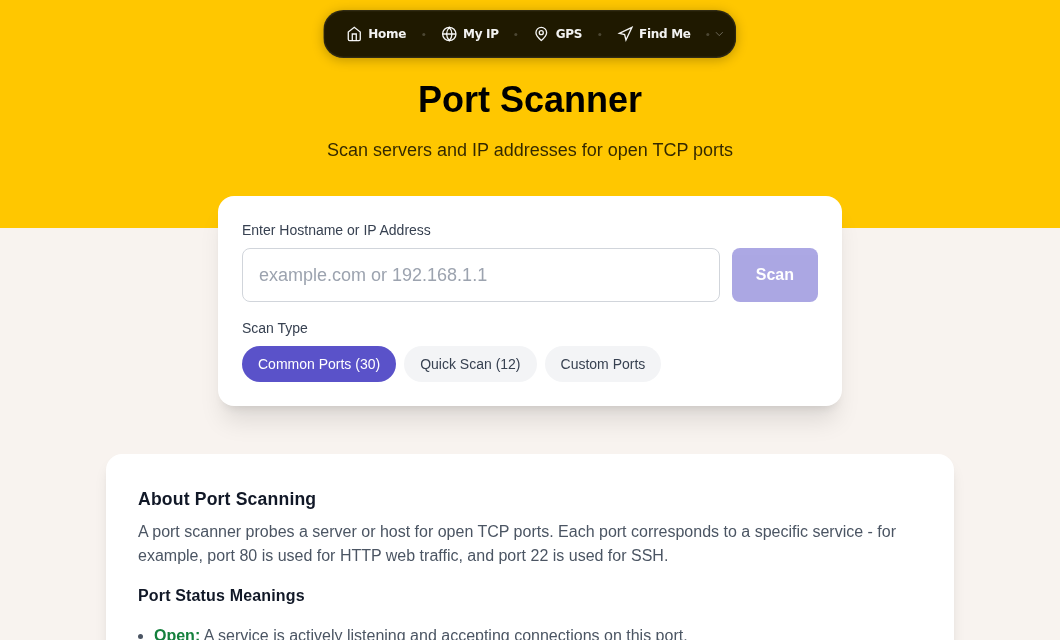
The simplest approach is our Port Scanner tool. It attempts a raw TCP handshake from outside your network and tells you whether the port is open, closed, or filtered.
Remote CLI Tools
When you need to test a remote host from the command line, or confirm connectivity before troubleshooting a firewall:
Windows - Test-NetConnection (PowerShell)
Test-NetConnection -ComputerName hostname_or_ip -Port 443Check just the result:
(Test-NetConnection -ComputerName hostname_or_ip -Port 443).TcpTestSucceededReturns True or False. The tnc alias makes it shorter to type:
tnc hostname_or_ip -Port 443macOS and Linux - netcat
nc -zv hostname_or_ip 443The -z flag runs in zero I/O mode (scan without sending data) and -v gives verbose output so you see the result:
Connection to hostname_or_ip 443 port [tcp/https] succeeded!   # OPEN
nc: connect to hostname_or_ip port 8080 (tcp) failed: Connection refused   # CLOSED
nc: connect to hostname_or_ip port 9000 (tcp) timed out   # FILTERED
Add a timeout to avoid waiting forever on filtered ports:
nc -zv -w 3 hostname_or_ip 9000Telnet still works as a quick check on any OS if netcat is not available:
telnet hostname_or_ip 443A blank screen or banner text means the port is open. "Connection refused" means closed. A long wait with no response means filtered.
Nmap (needs installation, available at nmap.org) is worth using when you need to scan a range of ports or identify what service is running:
nmap -p 80,443,8080 hostname_or_ip
nmap -sV -p 443 hostname_or_ip    # service version detection
Nmap reports six port states. The ones you will see most often: open (service responding), closed (port reachable, nothing listening), filtered (firewall blocking, no response), open|filtered (no response, could be either, common with UDP scans).
Only scan systems you own or have explicit permission to scan.
What the Results Tell You
| Result | What it means |
|---|---|
| Open | Service is reachable. Firewall and forwarding are configured correctly. |
| Closed | Port is reachable but nothing is listening. Start the service. |
| Filtered/Timeout | A firewall is blocking the connection somewhere in the path. |
The Port-Forwarding Workflow
Port forwarding is the most common reason someone runs both inside and outside checks. You are hosting something on your local machine, and you want the internet to reach it. The problem is that your router has a public IP, but your machine has a private one, so the router needs to be told to forward traffic on a specific port to your machine.
Step 1: Confirm the service is listening locally. Use the inside-check commands above. If ss -tlnp or netstat -aon do not show your service on the expected port, the problem is not the router.
Step 2: Configure port forwarding on your router. Log into your router admin panel, usually at 192.168.1.1 or 192.168.0.1. Find the port forwarding section, which may be labeled "NAT," "Virtual Server," or "Applications and Gaming." Create a rule forwarding the external port to your machine's local IP on the same (or different) internal port.
Step 3: Verify from outside. Use the Port Scanner tool. Do not test from a device on the same local network. Many routers do not support NAT loopback, meaning connections to your own public IP from inside your LAN simply fail, even when external connections work fine. Test from a cellular connection or ask someone on a different network to test for you.
Step 4: If it still fails, check these common blockers:
- Double NAT: If your ISP provides a gateway/modem with its own NAT, and you have a personal router behind it, you need port forwarding configured on both devices, or the outer device set to bridge mode.
- CGNAT: Some residential ISPs put multiple customers behind a single shared public IP address using Carrier-Grade NAT. If your router's WAN IP address starts with
100.64through100.127, you are behind CGNAT, and traditional port forwarding is impossible without contacting your ISP to request a public IP. In my testing, CGNAT is increasingly common on mobile broadband and some cable providers. - ISP port blocking: Port 25 is blocked by nearly all residential ISPs to prevent spam. Ports 80 and 443 are blocked by some ISPs to discourage server hosting on home connections. If you cannot get external access after everything else checks out, try running your service on a non-standard port and see if the external scanner can reach that one.
Troubleshooting a Port That Should Be Open
If the outside check shows filtered or closed when you expected open, work through this in order:
1. Confirm the service is actually listening (inside check, above). If it is not, no amount of firewall configuration will help.
2. Check the local firewall before blaming the router.
- Windows: open Windows Defender Firewall, go to Advanced Settings, check Inbound Rules for the port. Add a new rule: Port, TCP, allow the connection.
- Linux (ufw):
sudo ufw statusandsudo ufw allow PORT/tcp - Linux (firewalld):
sudo firewall-cmd --list-portsandsudo firewall-cmd --add-port=PORT/tcp --permanent && sudo firewall-cmd --reload - macOS: System Settings, Network, Firewall. Note that macOS Sequoia has a known bug where GUI firewall rules can be disconnected from the underlying rule set. If the GUI shows a rule but connections still fail, check with
sudo /usr/libexec/ApplicationFirewall/socketfilterfw --listapps.
3. Check router port forwarding (see workflow above). Make sure the internal IP in the forwarding rule matches the machine's current local IP. If the machine gets a new IP from DHCP after a reboot, the rule breaks. Set a DHCP reservation so the machine always gets the same local IP.
4. Use Traceroute to trace where packets stop. Dropped packets at a particular hop can identify whether the blockage is at your router, your ISP, or somewhere farther along the path.
Security Note on Open Ports
Every open port on a public IP is a potential entry point. Run Port Scanner against your own IP occasionally to audit what is actually exposed. The short checklist:
- Close ports you do not use. Default installations of software often listen on ports you never intended to expose.
- Change the SSH port from 22 to a higher number to reduce automated brute-force traffic.
- Keep services updated to patch known vulnerabilities on listening ports.
- Use fail2ban or similar tooling to block repeated failed attempts.
FAQ
Why does my port show as open from inside my network but closed from outside?
The most common cause is NAT loopback not being supported by your router. When you test your own public IP from inside your local network, the router does not complete the loop, so the connection fails even though external connections would work. Always test from a cellular connection or a tool like Port Scanner that connects from outside.
How do I know if my ISP is blocking a port?
If the port shows as filtered on an external scan even after confirming the service is listening and the local firewall allows it, contact your ISP. Certain ports, particularly 25, and sometimes 80 and 443, are commonly blocked on residential plans. You can also try running your service on a different port and scanning that one. If an alternate port works but the intended one does not, the block is at the ISP level.
What is the difference between a closed port and a filtered port?
A closed port means the port is reachable on the network but no service is listening. The operating system responds with a TCP RST (reset) packet. A filtered port means a firewall dropped the probe without responding at all, so the scanner cannot tell whether the port is open or closed. Filtered usually means a firewall; closed usually means the service is not running.
Can I check if a UDP port is open?
UDP port checking is less reliable than TCP because UDP does not use a handshake. With netcat: nc -uzv hostname_or_ip port. With nmap: sudo nmap -sU -p PORT hostname_or_ip. Because UDP probes often get no response from open ports, results are frequently open|filtered rather than a definitive open. The most reliable check for UDP services is to use a client that speaks the actual protocol on that port.
Why does checking a port on localhost give different results than checking my public IP?
Localhost (127.0.0.1) bypasses your network interfaces entirely. A service listening on localhost will not be reachable from another machine at all. A service must listen on 0.0.0.0 (all interfaces) or a specific LAN IP to be reachable from your network, and port forwarding must be configured for it to be reachable from the internet. The ss -tlnp or netstat output will show the bind address in the Local Address column, which tells you exactly which interfaces the service accepts connections on.
Sources

WhatIsMyLocation Team
Our team of network engineers and web developers builds and maintains 25+ free networking and location tools used by thousands of users every month. Every article is reviewed for technical accuracy using real-world testing with our own tools.
Related Articles
Try Our Location Tools
Find your IP address, GPS coordinates, and more with our free tools.