Summarise this article with:
The 60-Second Test
Open a terminal and run a continuous ping before you do anything else. It costs nothing and tells you whether you actually have packet loss or just a hunch.
Windows (sends 100 packets, then stops):
ping -n 100 8.8.8.8macOS / Linux (sends 100 packets, then stops):
ping -c 100 8.8.8.8Look at the summary line. Any value above 0% in the packet loss field is worth investigating. Run it again with -t (Windows) or no -c flag (macOS/Linux) for a continuous feed; press Ctrl+C to stop and see a live summary.
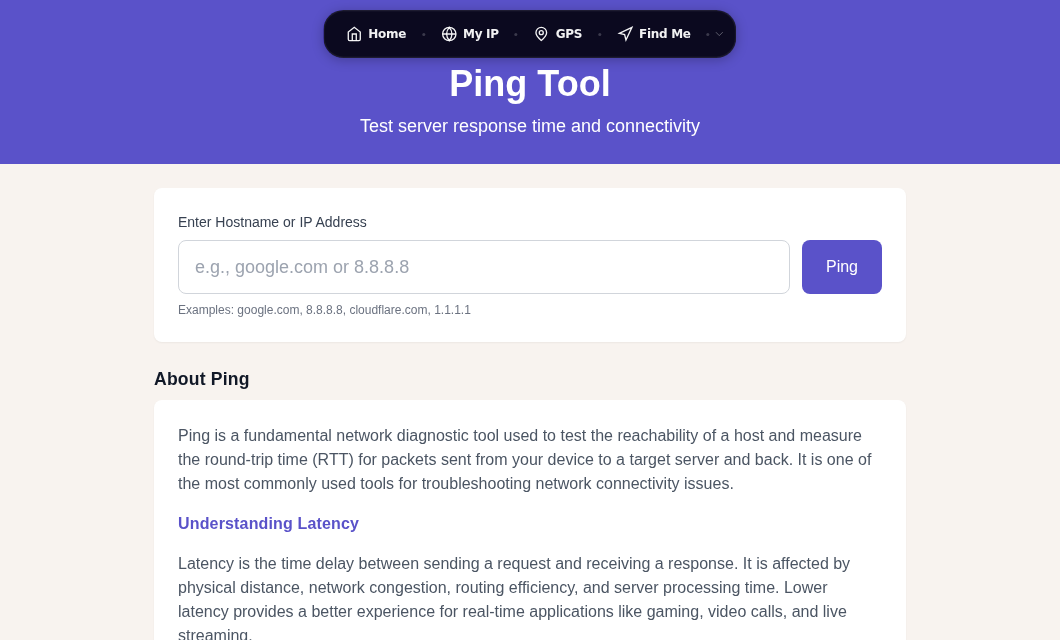
You can also use our Ping Tool directly in the browser without installing anything. For a broader network health snapshot, the Speed Test will also surface high latency patterns that accompany packet loss.
For a hop-by-hop picture, use MTR (My Traceroute), which combines ping and traceroute in one tool:
mtr --report --report-cycles 100 8.8.8.8MTR shows loss at each router along the path. Before panicking at an intermediate hop, know that many routers deprioritize ICMP replies to focus on forwarding real traffic. If an intermediate hop shows 20% loss but every hop after it shows 0%, that is an ICMP rate-limit artifact, not real data loss. True packet loss shows up at the final destination hop or persists through all subsequent hops.
In my testing, running 100 pings to a stable server is the minimum sample for a meaningful result. Fifty pings will mask intermittent bursts.
What Packet Loss Actually Does to Your Traffic
When data travels across the internet it is broken into small chunks called packets. If any packet fails to arrive, the behavior depends on the protocol:
- TCP (web browsing, file downloads): lost packets are automatically retransmitted. You see slowdowns, not outright failures.
- UDP (VoIP, gaming, video calls): no retransmission. Lost packets disappear, causing the choppy audio and stutter you hear in real time.
| Loss Rate | Likely Impact |
|---|---|
| 0% | No issues |
| 0.1-0.5% | Barely noticeable for most applications |
| 1-2% | Noticeable stutter on VoIP and gaming |
| 3-5% | Significant call degradation, frequent lag spikes |
| >5% | Severe: calls drop, streaming buffers constantly |
The 1-2% threshold is broadly cited by VoIP engineers as the point where quality becomes unacceptable for voice. Gaming tolerates slightly more but not much.
Cause 1: WiFi Interference (Most Common Culprit)
Wireless connections are inherently more lossy than wired ones, and interference is the leading reason.
At 2.4 GHz, your WiFi competes with microwaves, older cordless phones, baby monitors, and neighboring networks. Microwaves are the strongest single offender and can effectively knock out signal for devices within a few meters during operation. Baby monitors running on the same band cause sustained interference since they hold a constant connection between transmitter and receiver.
Signal strength matters too. The -70 dBm mark is often cited as the floor for basic reliable connectivity. Below -67 dBm, demanding applications like VoIP and HD streaming will drop packets. If your phone or laptop shows two bars from the corner of the room, you likely have a signal-strength problem, not a service problem.
Quick WiFi fixes:
- Move closer to the router, or move the router to a more central location.
- Switch to 5 GHz if your device and router both support it. Less congestion, though shorter range.
- Change your WiFi channel. On 2.4 GHz, use channels 1, 6, or 11; these are the only non-overlapping options. A free app like WiFi Analyzer (Android) or the built-in Wireless Diagnostics tool on macOS will show you which channels neighbors are using.
- The fastest diagnostic: plug in via Ethernet. If packet loss disappears on a wired connection, your problem is definitively WiFi.
Cause 2: Faulty Cables or Hardware
Local hardware fails more often than ISPs admit. A single bent pin in an Ethernet cable or a cheap unmanaged switch with a failing port can cause packet loss that looks identical to an ISP problem.
Work through this checklist before calling anyone:
- Ethernet cable: swap it. Damaged cables cause intermittent loss that is nearly impossible to diagnose any other way. This is the single highest-yield swap you can make.
- Network switch or hub: if you have one between your PC and router, bypass it and connect directly.
- Router: reboot it. Overheating routers are a legitimate cause of random packet loss. If you can, check whether the unit is hot to the touch and in an enclosed space.
- Network adapter driver (Windows): open Device Manager, expand Network Adapters, and look for warning triangles. Update the driver from the manufacturer's website, not Windows Update; the OEM driver is almost always newer.
Cause 3: ISP Congestion
ISPs sometimes oversell their capacity on shared last-mile segments. During peak evening hours (roughly 7-11 PM on weeknights), shared DOCSIS cable or DSL nodes can become congested enough to cause measurable packet loss that disappears completely at 9 AM.
Run your MTR test at two different times: mid-morning and peak evening. If loss is significantly worse in the evening, document both outputs with timestamps. That evidence is what gets you a real technician visit instead of a scripted remote reset.
If you are on a cable internet connection, you can check your modem's physical signal quality directly:
- Open a browser and navigate to
192.168.100.1(the default address for most DOCSIS modems). - Find the Downstream Signal section and look at the SNR (Signal-to-Noise Ratio) column.
- For 256-QAM downstream channels (the most common), SNR should be 30 dB minimum and ideally 33 dB or higher.
- Also look for uncorrectable codeword errors that are climbing over time. A rising count strongly suggests a physical line problem: a loose splitter, damaged coax, or a corroded connector at the street cabinet. This is something only a field technician can fix.
Cause 4: VPN or Firewall Misconfiguration
If packet loss only appears when your VPN is active, the likely cause is MTU fragmentation. VPN tunnels add encryption headers to every packet, shrinking the available payload size. When packets exceed the tunnel's MTU, they get fragmented. Some fragments get dropped.
The standard fix is to lower the tunnel MTU. WireGuard typically works well at 1420; OpenVPN at 1400. If you control your VPN configuration, set this explicitly. Otherwise, contact your VPN provider's support with the specific error behavior.
To isolate VPN as the cause: disable it, run your 100-ping test again, and compare. If loss drops to zero, the VPN is the scope.
An overly aggressive local firewall can also silently drop packets. Temporarily disable any third-party firewall software to rule this out.
Cause 5: Driver or OS-Level Issues
Not all packet loss comes from the physical network. On Windows in particular, outdated network adapter drivers have a documented history of causing the OS to drop packets before they reach the physical adapter. Check for driver updates from Intel, Realtek, or whoever made your NIC; do not rely on Windows Update, as the OEM driver is almost always newer.
Quality of Service (QoS) settings on some routers can also deprioritize certain traffic types in ways that look like packet loss. If you recently changed router settings, reset QoS to defaults and retest.
Quick Reference: Symptom to Likely Cause
| Symptom | Likely Cause | First Fix |
|---|---|---|
| Loss only on WiFi | Interference or weak signal | Ethernet cable, or switch to 5 GHz |
| Loss at all times, wired | Faulty cable or NIC driver | Swap Ethernet cable, update driver |
| Loss during peak hours only | ISP congestion | Document, escalate with MTR logs |
| Loss only with VPN active | MTU fragmentation | Lower tunnel MTU to 1420/1400 |
| Loss on cable modem | Line signal degradation | Check SNR, request ISP line visit |
| Intermittent random loss | Failing router or switch | Reboot, then replace hardware |
When to Call Your ISP
If you have completed the checklist above and still have packet loss on a wired connection at off-peak hours, the problem is almost certainly on your ISP's network or the physical line between your home and their equipment.
Call with your evidence:
- MTR reports showing loss at specific hops, with timestamps from multiple times of day.
- Cable modem diagnostics showing SNR below threshold or rising uncorrectable codeword errors (if applicable).
- Confirmation that your own hardware is ruled out (wired, swapped cable, rebooted router).
Ask specifically for a line technician visit to inspect the physical connection from your home to the street cabinet. A remote reset does not fix a corroded connector.
Related Diagnostics
- Use our Traceroute Tool to map the exact path your traffic takes and identify which ISP segment is dropping packets.
- The DNS Lookup Tool can help rule out DNS resolution delays that masquerade as slow connections.
- If you suspect your VPN is the cause, our VPN Leak Test can help you verify the tunnel is working as expected.
FAQ
What is a good packet loss percentage for gaming?
For online gaming, anything above 1-2% packet loss will produce noticeable lag spikes and rubber-banding. Competitive play generally requires under 1%, and under 0.5% is ideal. Packet loss is more disruptive than high latency for games that rely on UDP: a consistent 80ms ping with 0% loss plays better than a 40ms ping with 3% loss.
Why does my packet loss only happen at night?
Evening packet loss that disappears during the day almost always points to ISP congestion. Cable and DSL providers share bandwidth across a neighborhood node. When many subscribers are active simultaneously, the shared segment saturates. Run an MTR test at 9 AM and again at 9 PM and compare; if the numbers differ significantly, document both with timestamps and contact your ISP with the data.
Can packet loss be fixed without calling my ISP?
Yes, in many cases. WiFi interference, a damaged Ethernet cable, an overheating router, an outdated network driver, or VPN MTU settings are all things you can fix yourself. Start by plugging in via Ethernet and running a 100-ping test. If loss disappears on a wired connection, the fix is on your side of the router. ISP involvement is only necessary when wired packet loss persists at off-peak hours and your own hardware is ruled out.
Does a speed test show packet loss?
Standard speed tests (like those that measure Mbps) do not reliably surface packet loss because they use large TCP transfers, which retransmit lost packets automatically and show up as reduced throughput rather than explicit loss. The Speed Test can hint at the problem through erratic results, but a dedicated ping test or MTR scan is the right tool for diagnosing packet loss specifically.
What causes packet loss on a wired Ethernet connection?
On a wired connection, packet loss most commonly comes from a damaged or low-quality Ethernet cable (the single most common and most overlooked cause), a failing network switch or router, an outdated or buggy NIC driver, or a degraded physical line between your home and the ISP (visible as rising uncorrectable codeword errors on DOCSIS modems). If swapping the cable and rebooting the router do not fix it, check your cable modem's signal diagnostics before calling your ISP.
Sources
- Understanding Packet Loss in Traceroute and MTR - EDIS Global
- Impact of Packet Loss, Jitter, and Latency on VoIP - NetBeez
- Wi-Fi Signal Strength at -70 dBm Explained - Dong Knows Tech
- DOCSIS Codeword Errors and RF Impairments - ZCorum
- Cable Modem Signal Levels: SNR and Power Thresholds - Pick My Modem
- How to Diagnose and Test for Packet Loss - TechTarget

WhatIsMyLocation Team
Our team of network engineers and web developers builds and maintains 25+ free networking and location tools used by thousands of users every month. Every article is reviewed for technical accuracy using real-world testing with our own tools.
Related Articles
Try Our Location Tools
Find your IP address, GPS coordinates, and more with our free tools.