
Summarise this article with:
Start Here
Pick your symptom from the list below and jump straight to that section. Most internet problems fall into one of five patterns, and the fix is usually clear within two minutes of running the right diagnostic. My rule: before opening any settings panel, run one quick test to confirm which layer is broken.
| Symptom | Jump to |
|---|---|
| Nothing loads on any device | Total outage: no internet anywhere |
| Some sites load, others don't | DNS failure or site down |
| Everything is slow | Speed and bandwidth problems |
| One site or server is unreachable | Routing and traceroute |
| Connection drops and comes back | Intermittent drops and packet loss |
Total Outage: Nothing Works on Any Device
If every device in your home has lost internet at the same time, the problem is almost certainly between your router and your ISP.
Start with the 60-second physical check:
- Restart your modem and router. Unplug both from power, wait 30 seconds, plug the modem in first, wait 60 seconds until its lights stabilize, then plug the router back in.
- Check the WAN or Internet indicator light on your router. A red or absent light means the router has no upstream connection.
- Open a browser on your phone (on cellular data, not WiFi) and check your ISP's status page. If they have a reported outage in your area, you're done troubleshooting for now.
If the modem and router lights look normal but you still have no internet, try to reach your router's admin page from a device on the local network. Type 192.168.1.1 or 192.168.0.1 in a browser. If that page loads, your local network is fine and the problem is upstream. If it doesn't load, your device isn't actually on the network yet.
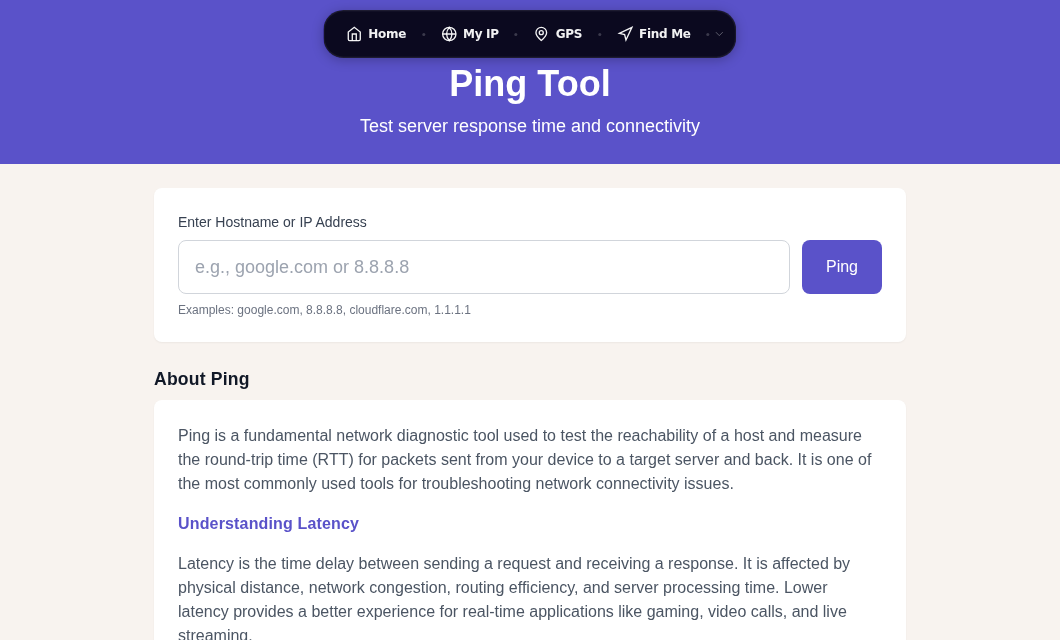
Before calling your ISP, use our My IP tool to confirm your public IP is resolving, and use Ping to test connectivity to a known IP like 8.8.8.8. If ping to 8.8.8.8 times out completely, that is the data point your ISP needs: the problem is at or beyond their edge.
See also: Public vs Private IP Addresses for what each tells you about where the fault lies.
DNS Failure: Some Sites Load, Others Don't
If you can reach some websites but not others, or pages show "Server Not Found" errors, DNS is the most likely culprit. DNS translates domain names into IP addresses. If DNS breaks, websites appear offline even when your internet connection is perfectly fine.
Quick test
Run these commands to isolate the problem:
Windows:
ping 8.8.8.8
nslookup google.com
macOS / Linux:
ping -c 4 8.8.8.8
nslookup google.com
If ping 8.8.8.8 succeeds (you get replies) but nslookup google.com fails, DNS is broken. Your internet works fine; your DNS resolver doesn't.
Fix 1: Flush your DNS cache
Windows:
ipconfig /flushdnsmacOS:
sudo dscacheutil -flushcache && sudo killall -HUP mDNSResponderLinux (systemd-resolved, most modern distros):
sudo resolvectl flush-cachesOn older systemd versions (before systemd 239), use sudo systemd-resolve --flush-caches instead.
Fix 2: Switch to a public DNS server
If your ISP's DNS servers are down or slow, switching to a public provider fixes the issue immediately.
| Provider | Primary | Secondary |
|---|---|---|
| Cloudflare | 1.1.1.1 | 1.0.0.1 |
| 8.8.8.8 | 8.8.4.4 | |
| Quad9 (with filtering) | 9.9.9.9 | 149.112.112.112 |
Windows 11: Settings > Network and internet > your connection (Wi-Fi or Ethernet) > Edit next to "DNS server assignment" > Manual > enter addresses.
macOS Sequoia: System Settings > Network > select your connection > Details > DNS tab > click + to add addresses > OK > Apply.
Router-level (affects all devices): Log into your router admin page and look for DNS or WAN settings. Entering public DNS there overrides whatever your ISP provides for every device on the network.
Use our DNS Lookup tool to test whether a specific domain resolves correctly from our servers. If it resolves there but not on your machine, the issue is local. See DNS Records Explained for a deeper look at how DNS works, and DNS Over HTTPS if you want to encrypt your lookups as well.
Slow Internet: Everything Loads but Takes Too Long
When all sites load slowly, run a speed test before changing anything. Without a baseline number, you're guessing.
Use our Speed Test and note the download and upload figures. Compare them to the speeds listed in your ISP plan.
- Getting close to your plan speed: the bottleneck is downstream, either the destination server or a specific application.
- Speeds are significantly below plan: the problem is in your connection, your router, or your local network.
WiFi vs. wired
Plug directly into your router with an Ethernet cable and run the speed test again. In my testing, switching from WiFi to wired on a congested 2.4GHz network can double or triple measured speeds with nothing else changing.
- Wired fast, WiFi slow: the bottleneck is in your wireless setup. Check channel congestion (many routers show this in the admin panel), try switching from 2.4 GHz to 5 GHz, and move closer to the router.
- Both slow: the problem is on your router or upstream from it.
Background bandwidth consumption
Before blaming your ISP, check what's using the connection:
- Cloud backup services (iCloud, Google Drive, Dropbox) syncing large folders
- Automatic OS or game updates running silently
- Smart home cameras uploading continuous video
- Other household members streaming at the same time
On Windows, open Task Manager > Performance > Open Resource Monitor > Network tab to see which processes are using bandwidth. On macOS, Activity Monitor > Network column shows the same.
See Internet Speed Test Explained for how to read and interpret your results correctly.
Routing Problems: One Site or Server Is Unreachable
When a specific site or server is unreachable while everything else works, the problem is either with that destination or somewhere along the path to it.
Step 1: Is it just that site?
Go to downforeveryoneorjustme.com or check the site on a different device using cellular data. If it's down for everyone, there's nothing to fix on your end.
Step 2: Traceroute to find the bottleneck
Use our Traceroute tool or run the command directly:
Windows:
tracert problematic-website.commacOS / Linux:
traceroute problematic-website.comRead the output from top to bottom. Each line is a router hop. Look for:
- A sudden latency jump at a specific hop: that router is the bottleneck.
*(timeouts) at every hop from a certain point onward: packets are being dropped at or after that router.- The same router IP appearing multiple times in a row: a routing loop.
If the high latency or timeouts appear in your ISP's network (the first few hops after your gateway), that is evidence for your support call. If they appear many hops out, the problem may be at a peering point or at the destination.
Read Traceroute Explained for a detailed guide on reading hop-by-hop output.
Intermittent Drops and Packet Loss
A connection that works fine and then drops for a few seconds, repeatedly, usually signals packet loss rather than a total outage. Packet loss above 1% is abnormal for a healthy connection to a reliable host.
Test for packet loss
Send a longer ping sequence to a stable target:
macOS / Linux:
ping -c 100 8.8.8.8Windows:
ping -n 100 8.8.8.8At the end, ping prints a summary showing packets transmitted, received, and lost. Any loss above 1% against 8.8.8.8 is a real problem. Zero loss is normal.
For continuous monitoring of intermittent issues:
macOS / Linux:
ping google.com | while read line; do echo "$(date): $line"; doneWindows:
ping -t google.comLet this run for an hour or overnight. Look for latency spikes or loss that appears at regular intervals, which can point to specific causes: interference on a WiFi channel, a failing coax cable, or node congestion at your ISP during peak hours.
Our Ping tool lets you run the same test from our servers to cross-check whether drops are on your path or universal.
IP Address Problems
A 169.254.x.x address on your device means DHCP failed. APIPA (Automatic Private IP Addressing) is a fallback mechanism that assigns a link-local address when your device could not get one from the router. An APIPA address cannot route to the internet.
Check your IP configuration
Windows:
ipconfig /allmacOS:
ifconfigLinux:
ip addr showLook for:
- An address in your router's range (typically 192.168.0.x or 192.168.1.x): normal.
- 169.254.x.x: DHCP failure. Restart the router, check the cable, then release and renew.
- A default gateway that matches your router's IP.
Release and renew your IP
Windows:
ipconfig /release
ipconfig /renew
Linux (NetworkManager):
nmcli device disconnect eth0
nmcli device connect eth0
Replace eth0 with your actual interface name from ip addr show. On systems using systemd-networkd (common on servers), use sudo networkctl renew eth0 instead. The older dhclient command still works on systems that have it installed.
Gathering Evidence for Your ISP
If you have ruled out local causes and the problem persists, call your ISP with specific data rather than "the internet is slow." ISP support teams can cross-reference your report against their network monitoring.
Gather before calling:
- Your public IP from My IP
- Speed test results from Speed Test showing speeds below your plan, with timestamps
- Traceroute output from Traceroute showing where latency spikes or packet loss begins
- Ping output showing packet loss percentage to
8.8.8.8 - The time and duration of each occurrence
- Which devices and connections are affected
The more specific you are, the faster the support call goes. ISPs are much more likely to escalate to a field technician when you arrive with traceroute data pointing to a hop inside their network.
Check Port Scanner if you also need to confirm whether specific ports are reachable from outside your network, for example if you run a home server.
Frequently Asked Questions
How do I tell whether the problem is my router or my ISP?
Connect a device directly to your modem (bypassing the router) with an Ethernet cable and test your connection. If speeds and reliability are normal on the direct modem connection, your router is the problem. If the problem persists with the router removed from the chain, the fault is with your ISP or the modem itself.
Why do some websites load but others don't?
There are three common causes. First, DNS failure: your resolver can reach some cached entries but not others. Test with nslookup google.com and switch to 1.1.1.1 if it fails. Second, the specific site is down: check it from a different network or use a site-status checker. Third, a routing problem: a path to that particular destination's network is broken. Run a traceroute to the site and see where packets stop.
How do I test for packet loss without installing software?
Use the built-in ping command with a large count: ping -c 100 8.8.8.8 on macOS or Linux, or ping -n 100 8.8.8.8 on Windows. The summary at the end shows percentage lost. You can also use our Ping tool, which runs the same test from our servers so you can compare whether loss is on your local path or more widespread.
What does a 169.254 IP address mean?
It means your device failed to get an IP address from your router's DHCP server. Windows, macOS, and Linux all fall back to self-assigning a 169.254.x.x address when DHCP times out after roughly 60 to 90 seconds. This address cannot route to the internet. Restart your router, check the cable connection, and try releasing and renewing your IP using the commands in the IP address section above.
Why is my internet fast on a speed test but slow when I actually use it?
Speed tests measure raw throughput to a nearby server under ideal conditions. Real browsing and streaming involve many more variables: DNS lookup time, TCP connection setup, server response latency, and CDN routing. A site that is slow despite a fast speed test usually has high latency (not low throughput), a slow server, or a routing bottleneck between you and that specific destination. Run a traceroute to the slow site to see where the delay is introduced.
How do I know if my ISP is throttling my connection?
Run a speed test at different times of day, particularly in the evening (peak hours) versus early morning. If speeds drop significantly in the evening, that is consistent with network congestion either on your ISP's node or their upstream peering. A VPN Leak Test can also help rule out local interference. If speeds are consistently below your plan at all times, the ISP has a provisioning or line issue to address.
Sources
- resolvectl flush-caches vs systemd-resolve, Baeldung on Linux
- Change DNS settings on Mac, Apple Support
- How to change DNS server settings in Windows 10 and 11, PDQ
- What is Packet Loss and acceptable thresholds, Obkio
- What is APIPA 169.254 address, GeeksforGeeks
- How to Renew a DHCP Lease on Linux, OneUptime

WhatIsMyLocation Team
Our team of network engineers and web developers builds and maintains 25+ free networking and location tools used by thousands of users every month. Every article is reviewed for technical accuracy using real-world testing with our own tools.
Related Articles
Try Our Location Tools
Find your IP address, GPS coordinates, and more with our free tools.