
Summarise this article with:
Step 0: Diagnose Before You Fix (30 seconds)
The fastest path to a fix starts with one question: is location broken in one app, every app, or never at all? Open Chrome on your Android phone and load our Find My Location page, then tap Allow when Chrome asks for location. What happens next tells you exactly which fix you need.
| What you see | What it means | Where to start |
|---|---|---|
| Correct location appears | Location works. Bug is inside one app | Fix 1 (permissions) |
| Wrong location | GPS works but is inaccurate | Fix 3, Fix 4, Fix 5 |
| No location, fails in other apps too | System-wide failure | Fix 2, then Fix 3 in order |
| Never works even outdoors, every time | Likely a hardware fault | Skip to Hardware section |
This test alone saves an hour of random toggling. If the website finds you but Google Maps does not, the fault is in Maps' permission, not your GPS antenna.
How Android Location Actually Works
Your Android phone does not rely on GPS satellites alone. According to Google's own documentation, the location system combines GPS, Wi-Fi network signals, Bluetooth beacons, and cellular towers. When you are indoors, or in a dense city block where buildings block the sky, the phone falls back to Wi-Fi and cellular triangulation until it can see satellites again.
Two things follow from that:
- Indoors, your phone leans on Wi-Fi and cell signals, not satellites. That is why location is fuzzy in a basement and sharp in an open parking lot.
- Battery optimization can silently throttle or kill the location subsystem. Android's background process limits, and Samsung's own aggressive power management on top of that, are the cause behind a large share of "GPS stopped working" complaints that have nothing to do with GPS hardware.
Fix 1: Check the App's Permission First (most common cause)
If the Find My Location test worked but one specific app fails, the app is not allowed to see your location.
- Open Settings
- Tap Location (or Privacy then Location on some skins)
- Tap App location permissions
- Find the misbehaving app and tap it
- Select Allow only while using the app (or Allow all the time for navigation apps that need background access)
- Turn on Use precise location
The "Use precise location" switch matters. With it off, the app receives a deliberately rough neighborhood-level position, which looks exactly like "wrong location" to you.
For Google Maps specifically: Settings → Apps → Google Maps → Permissions → Location, then set it to Allow all the time and turn on Use precise location.
| Permission level | What the app gets |
|---|---|
| Don't allow | No location, ever |
| Ask every time | Prompts each session |
| While using the app | Location only when the app is on screen |
| Allow all the time | Background location too, needed for navigation and geofencing |
Fix 2: Confirm Location Is Turned On System-Wide
- Open Settings → Location
- Make sure the main Use location toggle at the top is on
If it is already on, toggle it off, wait ten seconds, then turn it back on. This restarts the location subsystem and clears most transient glitches. Re-test on Find My Location.
Fix 3: Enable Google Location Accuracy (the toggle most guides bury)
This is the Android-specific fix that catches a disproportionate number of cases. Google Location Accuracy lets your phone use Wi-Fi, Bluetooth, and cellular signals alongside GPS. When it is off, your phone relies on satellites alone, making location slow and unreliable indoors.
On Android 12 and newer (including Android 15 and 16):
- Settings → Location → Location Services → Google Location Accuracy
- Turn on Improve Location Accuracy
On Android 11 and older:
- Settings → Location → Advanced → Google Location Accuracy
- Turn on Improve Location Accuracy
The setting path may say Location Services or Location Accuracy depending on your manufacturer, but it is under the main Location settings on all current Android versions.
Fix 4: Turn On Wi-Fi and Bluetooth Scanning
Even if you are not connected to any Wi-Fi network, your phone can use nearby networks and Bluetooth beacons to triangulate position. Scanning these is separate from actually connecting to them.
- Settings → Location → Location Services → Wi-Fi scanning and turn it on
- Settings → Location → Location Services → Bluetooth scanning and turn it on
These signals are especially useful indoors and in urban areas where GPS satellites cannot be seen. Turning Wi-Fi on at the phone level (not just scanning) also helps because your phone can use the connected network's rough location as a fast first fix before the GPS satellite lock settles.
Fix 5: Disable Battery Optimization for Location-Dependent Apps
Battery optimization is the most underrated cause of Android location failures. Android is allowed to put apps to sleep in the background to save power, and on some devices this happens aggressively enough to cut off location updates entirely.
Standard Android (all versions):
- Settings → Apps → tap the app that is failing (e.g., Google Maps)
- Tap Battery
- Set it to Unrestricted (on Android 12+) or tap Battery optimization and choose Don't optimize
Samsung-specific (One UI 6 and newer):
Samsung has its own layer on top of Android's battery management. A navigation or location app can be "sleeping" or "deep sleeping" even after you exempt it in standard Android settings.
- Settings → Battery and device care → Battery → Background usage limits
- Check the Sleeping apps and Deep sleeping apps lists and remove your location-dependent apps from both
- Then go to Settings → Battery and device care → Battery → App power management → Never sleeping apps
- Tap + and add apps that must always have location access (Google Maps, your navigation app, etc.)
In my testing, Google Maps on a Galaxy S-series phone running One UI 7 had silently moved into the sleeping apps list after a few days of irregular use, which caused the location to freeze mid-navigation. Adding it to the Never sleeping apps list fixed it immediately.
Important for Samsung: Samsung's system can re-add apps to the sleeping list after a firmware update. Check this list again if location failures come back after an update.
Fix 6: Enable Wi-Fi and Bluetooth (at the phone level)
Because location triangulation uses nearby networks and beacons, these should stay on even when you are not actively using them.
- Pull down the notification shade
- Make sure Wi-Fi and Bluetooth are toggled on
- Confirm Airplane Mode is off
You do not need to connect to a network. Your phone just needs to detect the signals around it.
Fix 7: Calibrate the Compass
A poorly calibrated compass does not break GPS position accuracy, but it does cause the direction arrow to point the wrong way and can make navigation apps behave erratically.
Using Google Maps:
- Open Google Maps
- Tap the blue dot that represents your position
- Tap Calibrate compass (or Calibrate)
- Move your phone in a figure-8 pattern until the accuracy indicator says High
Do this away from metal objects, speakers, or electronics, which can interfere with the magnetometer. For more detail on what calibration actually fixes and when it matters, see our guide on How to Calibrate Your Phone's Compass.
Fix 8: Clear the Location App's Cache
Corrupted cached data can cause location to freeze or produce wildly wrong results.
- Settings → Apps → Google Maps
- Tap Storage
- Tap Clear Cache
Clearing cache does not delete your offline maps, saved places, or account data. If clearing the cache alone does not help, tap Clear Data only if you are comfortable signing back in and reconfiguring the app.
Fix 9: Test in Safe Mode (to find a rogue third-party app)
Safe mode loads Android without third-party apps running. If GPS works in Safe Mode but fails in normal mode, a third-party app installed recently is interfering.
To enter Safe Mode (works on most Android phones):
- Press and hold the Power button until the power menu appears
- Touch and hold Power off until a "Reboot to safe mode" prompt appears
- Tap OK
- Test location in Safe Mode
If location works in Safe Mode, reboot normally and uninstall apps you added around the time the problem started, one at a time, re-testing after each.
Fix 10: Check for a Stale Mock Location Setting
If you ever used a "fake GPS" or location spoofer app, Android's mock location setting can get stuck pointing at a test app that no longer exists, corrupting real location data.
- Settings → System → Developer options
- Look for Select mock location app
- Make sure it is set to None (or nothing selected)
If Developer options is not visible: go to Settings → About phone and tap Build number seven times to enable it, then check the mock location setting.
Verify the Fix Worked
After any fix, confirm against a neutral source rather than trusting one app:
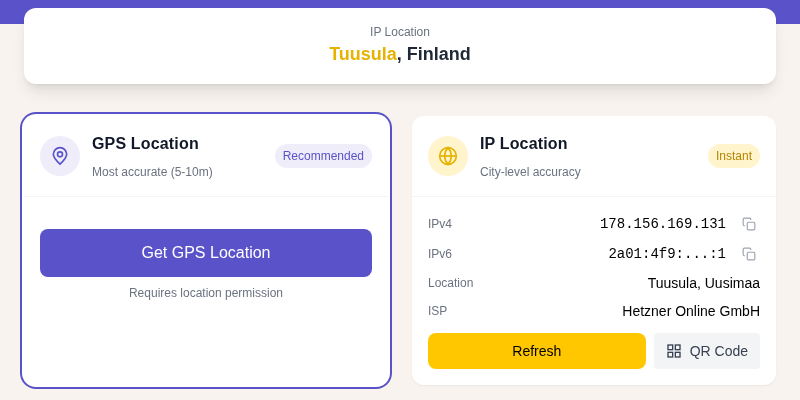
- Open Chrome and load our Find My Location page
- Tap Allow when Chrome asks for location
- Your position should appear within a few seconds
- For the raw coordinates, try GPS Coordinates
If the website locates you correctly, Location Services itself is working. Any remaining issue lives inside a specific app's settings.
Device-Specific Notes
Samsung (One UI 6 and 7)
Samsung's App power management is the most common culprit on Galaxy devices. The sleeping apps list can silently expand after firmware updates. The fix is described in Fix 5 above. Also check: Settings → Apps → the app in question → Battery, because Samsung shows a separate per-app battery restriction here that can exist independently of the global sleeping list.
Google Pixel
Pixels run close to stock Android, so the paths in this guide apply directly. One Pixel-specific check: make sure no mock location app is selected under Settings → System → Developer options → Select mock location app. This setting sometimes gets left on after developer testing.
Other manufacturers (OnePlus, Xiaomi, Oppo)
These brands have their own battery management layers similar to Samsung's. Check for an equivalent "protected apps," "autostart," or "background app management" setting under Battery settings. The website Don't Kill My App maintains current per-brand instructions if you cannot find the right path on your device.
When Location Never Works: Hardware or Deep Software Fault
If location never functions, even standing outdoors with an unobstructed view of the sky, after working through all the fixes above, you are likely facing one of two problems.
To confirm a hardware fault: Download a GPS diagnostics app from the Play Store (search "GPS status" or "GPS test"). A working GPS antenna picks up multiple satellites outdoors within thirty seconds. Zero satellites detected outdoors, while a nearby phone locks on instantly, points to a failed antenna or connector.
What to do next:
- If the problem started after a drop or water exposure, that is physical damage: contact your manufacturer or an authorized repair center
- If no drops happened and no fixes worked, contact Google, Samsung, or your manufacturer's support and mention you have exhausted software troubleshooting
- Check your warranty or device protection plan before paying out of pocket for a repair
No app on the Play Store can repair a hardware fault. Any "GPS fix" or "GPS repair" download that claims otherwise is either a diagnostics tool mislabeled or outright misleading.
Frequently Asked Questions
Why did my Android location stop working after a software update?
Updates can reset battery optimization exemptions, which causes Android to re-add location-dependent apps to its sleeping list. They can also update Google Play Services in ways that require the Google Location Accuracy toggle to be re-enabled. After any major update, go to Fix 3 (Google Location Accuracy), Fix 5 (battery optimization), and Fix 6 (check Wi-Fi and Bluetooth are on), in that order.
Does Android location need an internet connection?
GPS satellites work without an internet connection, but the full location system works better with one. Google Location Accuracy uses Wi-Fi, Bluetooth, and cellular signals, and some of that triangulation involves sending nearby signal data to Google's servers to get fast coordinates back. Indoors, where satellites are blocked, the phone depends heavily on that online lookup. With no data and no satellite lock, it may not be able to place you at all.
Why does my location work outdoors but fail indoors?
Indoors, walls and roofs block GPS satellites, so Android falls back to Wi-Fi and cellular triangulation, which is inherently less precise. That is normal and expected. Enabling Wi-Fi and Bluetooth (Fix 6) and turning on Wi-Fi and Bluetooth scanning (Fix 4) gives Android more signals to work with indoors and narrows the accuracy gap. For a deeper look at why GPS and IP-based location differ in accuracy, see GPS vs IP Location: What's the Difference?.
Why is my Google Maps showing the right area but the arrow points the wrong direction?
The position (latitude and longitude) comes from GPS and network signals. The direction arrow comes from the compass magnetometer, which is a separate sensor. A wrong direction arrow while the position is correct means your compass needs calibrating: open Google Maps, tap your blue dot, and follow the figure-8 calibration. Position and direction can fail independently.
Can battery saver mode cause GPS to stop working?
Yes, directly. Android's Battery Saver mode throttles or suspends background location access for apps that are not actively in the foreground. Navigation apps that need continuous GPS updates are particularly affected. Turn off Battery Saver while navigating, and add navigation apps to the battery optimization exemption list so they are not throttled when in use.
My location is right in Chrome but wrong in my other app. Why?
Because each app has its own location permission and accuracy setting, independent of the system and of every other app. When our Find My Location page finds you but another app does not, the system GPS is healthy. The problem is that app's specific permission (Fix 1): open its battery and permission settings, confirm it is set to Allow while using with Use precise location turned on.
Related Guides
- Location Services Not Working on iPhone? Fix It Step by Step
- How to Calibrate Your Phone's Compass for Better GPS Accuracy
- GPS vs IP Location: What's the Difference?
- IP Geolocation Accuracy: What to Expect
Sources
- https://support.google.com/android/answer/3467281
- https://support.google.com/maps/answer/2839911?co=GENIE.Platform%3DAndroid
- https://support.google.com/android/answer/6179507
- https://developer.android.com/develop/sensors-and-location/location/battery
- https://dontkillmyapp.com/samsung
- https://www.samsung.com/us/support/answer/ANS10003442/

WhatIsMyLocation Team
Our team of network engineers and web developers builds and maintains 25+ free networking and location tools used by thousands of users every month. Every article is reviewed for technical accuracy using real-world testing with our own tools.
Related Articles
Try Our Location Tools
Find your IP address, GPS coordinates, and more with our free tools.