
Summarise this article with:
Location Services Not Working on iPhone? Fix It Step by Step (iOS 26)
When Maps puts you on the wrong street, Weather shows a city you left two states ago, or an app keeps begging for location permission it already has, the temptation is to start flipping every toggle you can find. Don't. The fastest fix starts with one question: is location broken in one app, every app, or never at all? Answer that and you skip most of this guide.
I run the tools on this site, and I tested every step below on an iPhone running iOS 26 (the current release as of mid-2026, the one with the Liquid Glass redesign). The menu names and paths here match that version. If you are on an older iOS, the wording is nearly identical, just slightly less rounded.
- One app only is a permission problem. Set that app to While Using the App and turn on Precise Location.
- Every app usually means the master Location Services toggle is off, a System Services toggle quietly flipped off after the iOS 26 update, or your iPhone has no internet or a wrong clock.
- Never works, even outdoors with a clear sky points to a hardware fault. No setting and no third-party app can repair a dead GPS antenna.
Work the numbered fixes in order and re-test after each one on our Find My Location page. Most people are done by Fix 3.
Step 0: Diagnose in 30 Seconds (do this first)
Open Safari and load our Find My Location page, then tap Allow when the browser asks for location. What happens next tells you which fix you actually need:
| What you see | What it means | Go to |
|---|---|---|
| The page shows your correct location | Location Services works. Your problem is inside one app | Fix 1 + the App-Specific section |
| The page shows the wrong location | Positioning works but is inaccurate (Wi-Fi or environment) | Fix 4, Fix 7, Environmental Factors |
| The page can't get any location, and neither can other apps | System-wide failure | Fix 2 through Fix 8, in order |
| It fails everywhere, even outdoors, every time | Likely a hardware fault | Fix 9 |
This single test saves you from "fixing" things that aren't broken. If the website finds you but your Uber app doesn't, the bug is in the app's permission, not in your iPhone's GPS.
How iPhone Location Actually Works (so the fixes make sense)
Your iPhone does not rely on GPS alone. Apple's own documentation says Location Services "uses GPS and Bluetooth (where they're available), along with crowd-sourced Wi-Fi hotspots and cellular towers to determine the approximate location of your device." When buildings or a roof block the satellites, the phone falls back to Wi-Fi and cellular positioning until it can see the sky again.
Two things follow from that, and they explain half the problems people have:
- Indoors, your iPhone leans on Wi-Fi and cell towers, not satellites. That is why location is fuzzy in a basement and pinpoint in a parking lot.
- Wi-Fi and cellular positioning need an internet connection. Your phone sends nearby network signatures to Apple and gets coordinates back. With no data and no satellite lock, it has nothing to work with.
Keep that "GPS plus Wi-Fi plus cellular" picture in mind. It is why "turn Wi-Fi on even if you don't connect" is real advice and not folklore.
Fix 1: Check the App's Own Permission (the most common cause)
If the Find My Location test worked but a specific app fails, the app simply isn't allowed to see your location.
- Open Settings
- Tap Privacy & Security
- Tap Location Services
- Confirm the master toggle at the top is on
- Scroll down and tap the app that is misbehaving
- Choose While Using the App (or Always for things like turn-by-turn navigation)
- Turn on Precise Location
That last switch matters. With Precise Location off, the app gets a rough neighborhood-level position on purpose, which looks exactly like "wrong location" to you.
Each app's location permission is independent. Granting it to Maps does nothing for Uber, Weather, or your camera's geotagging.
| Permission | What the app gets |
|---|---|
| Never | No location, ever |
| Ask Next Time Or When I Share | Prompts you each session |
| While Using the App | Location only while the app is open and on screen |
| Always | Location in the background too (needed for geofencing, weather widgets, Find My) |
Fix 2: Confirm the Master Location Services Toggle
If nothing can get location, start at the top.
- Settings → Privacy & Security → Location Services
- Make sure the toggle at the very top is on
If it is already on, toggle it off, wait about ten seconds, then turn it back on. This forces the location subsystem to restart and clears a lot of transient glitches. Re-test on Find My Location.
Fix 3: Re-enable System Services (the iOS 26 gotcha most guides miss)
This is the fix that the Apple-Support clones skip, and it is the one that bit a lot of people. After updating to iOS 26, several users found that toggles under System Services, including Share My Location and the switches that power Find My, Home, and Shortcuts automations, had quietly turned themselves off. The result: location-based features looked dead even though the main toggle was on.
- Settings → Privacy & Security → Location Services
- Scroll to the very bottom and tap System Services
- Turn Share My Location back on
- If location-based Home automations or Shortcuts broke, toggle Home and Shortcuts off and back on too
- Restart the iPhone (Fix 5) and re-test
If your trouble started right after an iOS update, check System Services before you try anything drastic. It is a five-second fix that gets blamed on "GPS hardware" all the time.
Fix 4: Turn On Wi-Fi and Bluetooth (even if you don't connect)
Because your iPhone uses Wi-Fi hotspots and Bluetooth beacons to refine position, leaving them on improves accuracy and speed, especially indoors and in dense cities.
- Open Control Center (swipe down from the top-right corner)
- Make sure Wi-Fi and Bluetooth are on
- Confirm Airplane Mode is off
You do not have to join a Wi-Fi network. Your phone just needs to see the networks around it to triangulate. No internet plus no satellite lock equals no location, so also confirm you actually have a data connection.
Fix 5: Force Restart the iPhone
A force restart clears stuck processes that a normal restart leaves running. On iPhone 8 and every model since (including all Face ID iPhones up to the iPhone 17 line):
- Press and quickly release Volume Up
- Press and quickly release Volume Down
- Press and hold the Side button until the Apple logo appears, then let go
Wait for the phone to boot, then re-test location. A plain restart (Settings → General → Shut Down, then power back on) often does the job too, but the force restart is more thorough.
Fix 6: Check Date, Time, and Time Zone
Apple recommends keeping your clock set automatically, and a badly wrong date or time zone can break the encrypted network lookups your phone uses for Wi-Fi and cellular positioning. To be clear, I am not claiming your clock "calculates GPS" for you. The honest version is simpler: a wrong clock breaks the online location lookups, so set it automatically.
- Settings → General → Date & Time
- Turn on Set Automatically
- If it is already on and location is still flaky, toggle it off, wait five seconds, and turn it back on
- Confirm the Time Zone shown is actually where you are
Fix 7: Disable Low Power Mode
Low Power Mode throttles background activity to save battery, and that includes how aggressively the phone fetches location.
- Settings → Battery
- Turn off Low Power Mode (or charge above 80%, where iOS drops it automatically)
- Re-test
If location only fails when your battery is low, this is almost certainly your cause, not a fault.
Fix 8: Reset Location & Privacy
If location is still broken everywhere, reset every app's location permission to default. This does not erase your photos, messages, or files. It only clears location and privacy permissions, so apps will ask again the next time you open them.
- Settings → General → Transfer or Reset iPhone
- Tap Reset
- Tap Reset Location & Privacy
- Enter your passcode and confirm
After the reset, open the app you care about, grant location when prompted, and re-test on Find My Location.
Fix 9: Rule Out a Hardware Fault (and the honest truth about "GPS fixer" apps)
If location never works, even standing outdoors with a clear view of the sky, after all the steps above, you are probably looking at a hardware problem with the GPS antenna. Common triggers are a drop, water exposure, or a botched third-party repair.
Here is where I want to be straight with you, because plenty of pages are not. The App Store has real diagnostic tools, the best known being GPS Diagnostic: Satellite Test, that show how many satellites your phone is locking onto and how strong the signal is. Those apps are genuinely useful for confirming whether the antenna is receiving satellites. What they cannot do is repair a hardware fault. No app, no setting, and no "GPS repair" download fixes a broken antenna. If the diagnostic shows zero satellites outdoors while a friend's iPhone locks on instantly beside you, the antenna or its connector needs physical service.
At that point, stop troubleshooting and:
- Run Apple's own diagnostics through Apple Support
- Book an appointment at an Apple Store or Apple Authorized Service Provider
- Check your warranty or AppleCare+ before paying out of pocket
A dead antenna is a repair, not a tutorial. Spending another hour toggling settings won't bring it back.
App-Specific Fixes
Most "location" complaints are really one misbehaving app. Here are the three that generate the most questions.
Google Maps not finding you
- Settings → Google Maps
- Set Location to While Using the App
- Turn on Precise Location
- Force-close Maps (swipe up from the bottom and flick the card away), then reopen
- If the blue dot is in roughly the right spot but pointing the wrong way, your compass needs calibrating, see How to Calibrate Your Phone's Compass
Weather showing the wrong city
- Settings → Privacy & Security → Location Services → Weather
- Set it to While Using the App or Always
- Open Weather and pull down to refresh
Find My not updating
- Settings → [Your Name] → Find My
- Make sure Find My iPhone is on
- Turn on Share My Location
- If it still won't update, the Share My Location toggle under System Services (Fix 3) is the usual culprit after an iOS 26 update
Environmental Factors (when accuracy, not the feature, is the problem)
Sometimes nothing is broken. GPS simply can't see enough sky. Accuracy drops or location drifts when you are:
- Indoors, especially in large buildings, basements, or steel-framed structures
- In an urban canyon, where tall buildings bounce and block satellite signals
- Underground, in subways, tunnels, or parking garages
- Surrounded by large metal, like inside a vehicle with a metal roof
For the most accurate fix, step outside with an open view of the sky and give the phone ten to twenty seconds to lock on. You can watch the accuracy tighten in real time on our GPS Coordinates tool.
Confirm the Fix Worked
Don't take an app's word for it. Verify against a neutral source:
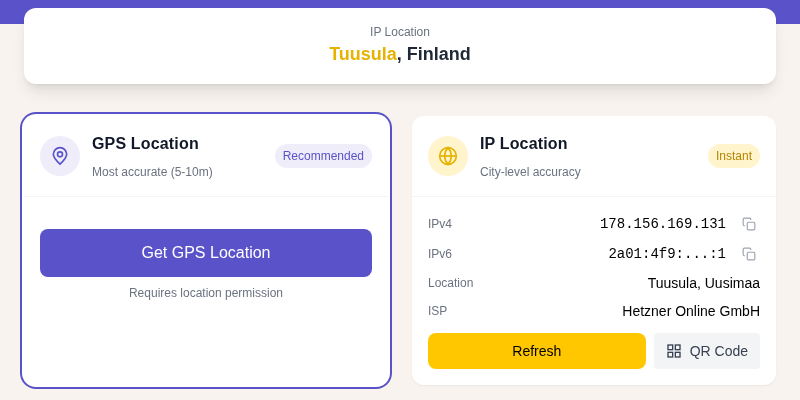
- Open Safari and load our Find My Location page
- Tap Allow
- Your position should appear within a few seconds
- For the raw numbers, open GPS Coordinates, and if you need to translate between formats, Coordinate Converter turns decimal degrees into degrees-minutes-seconds and back
If the website locates you correctly, Location Services itself is healthy, and any remaining issue lives inside a specific app's settings.
When to Stop and Call Apple
Reach out to Apple if:
- You have worked every fix above and location still fails system-wide
- GPS never functions, even outdoors with a clear sky
- The phone was recently dropped or exposed to water
- The problem appeared right after a software update and System Services (Fix 3) didn't resolve it (this could be a known bug worth reporting)
Frequently Asked Questions
Why did my iPhone location stop working right after the iOS 26 update?
The most common cause is a System Services toggle that flipped off during the update. After installing iOS 26, several users found Share My Location and the switches behind Find My, Home, and Shortcuts had turned themselves off. Go to Settings → Privacy & Security → Location Services → System Services, turn those back on, then restart. That fixes most update-related location failures.
Does Location Services need an internet connection to work?
For satellite GPS alone, no, but in practice yes for most situations. Your iPhone uses crowd-sourced Wi-Fi hotspots and cellular towers alongside GPS, and that part needs an internet connection to look up coordinates. Indoors, where satellites are blocked, the phone depends almost entirely on that online lookup, so with no data and no satellite lock it can't place you at all.
Should I turn on Precise Location for every app?
Only for apps that genuinely need your exact spot, like Maps, navigation, ride-hailing, and Find My. With Precise Location off, an app gets a deliberately approximate position, which is fine for a weather app but looks like "wrong location" for navigation. Leave it off for apps that have no business knowing your exact coordinates.
Will resetting Location & Privacy delete my data?
No. Reset Location & Privacy only clears the permissions you have granted apps. Your photos, messages, contacts, and files are untouched. The only consequence is that apps will ask for location (and other privacy) permissions again the next time you open them.
Can a third-party app fix my iPhone's GPS?
No app can fix a hardware fault. Diagnostic apps like GPS Diagnostic: Satellite Test can tell you whether your antenna is receiving satellite signals, which is genuinely useful for confirming a hardware problem, but they cannot repair an antenna. If a diagnostic shows zero satellites outdoors while another iPhone locks on beside you, you need a physical repair through Apple Support or AppleCare+, not a download.
My location is correct on a website but wrong in an app. Why?
Because the app has its own permission and accuracy settings separate from the rest of the phone. If our Find My Location page finds you but an app doesn't, set that app to While Using the App with Precise Location on (Fix 1). The system is healthy; the app's permission is the bottleneck.
Why is my location accurate outdoors but way off indoors?
Indoors, walls and roofs block the GPS satellites, so your iPhone switches to Wi-Fi and cellular positioning, which is less precise than a clean satellite lock. That is normal behavior, not a fault. Turning on Wi-Fi and Bluetooth (Fix 4) helps indoors because it gives the phone more nearby signals to triangulate from.
Does Low Power Mode affect GPS?
Yes. Low Power Mode throttles background activity, including how often and how aggressively your iPhone fetches location. If location only fails when your battery is low, turn off Low Power Mode (Fix 7) or charge above 80%, where iOS disables it automatically.
The Bottom Line
Ninety percent of iPhone location problems are one of three things: a single app missing Precise Location, the master Location Services toggle being off, or a System Services switch that flipped off after an iOS 26 update. Diagnose first with Find My Location, work the fixes in order, and you'll know within a few minutes whether you have a setting to flip or a genuine hardware fault that needs Apple. The one thing not to do is throw an hour at toggles when a diagnostic already told you the antenna is dead.
Related guides:

WhatIsMyLocation Team
Our team of network engineers and web developers builds and maintains 25+ free networking and location tools used by thousands of users every month. Every article is reviewed for technical accuracy using real-world testing with our own tools.
Related Articles
Try Our Location Tools
Find your IP address, GPS coordinates, and more with our free tools.