
Summarise this article with:
What Email Headers Actually Are
Every email you receive contains a hidden block of metadata that records the message's entire journey from origin to inbox. Your email client hides it by default, but the raw text is always there. Headers work like postmarks on a physical letter: each server that handles the message prepends its own stamp at the top, so the chain builds upward over time.
Here is a sanitized but realistic header block from a suspicious email. The rest of this guide works through it field by field.
Return-Path: [email protected]
Received: from mail-out.paypa1-security.net (mail-out.paypa1-security.net [185.220.101.47])
        by mx.recipient.com with ESMTP id x9si2847013qkj.88
        for [email protected];
        Tue, 01 Jul 2026 08:14:22 -0700 (PDT)
Received: from webmail-host.paypa1-security.net (localhost [127.0.0.1])
        by mail-out.paypa1-security.net with ESMTP id c3ab9f12
        for [email protected];
        Tue, 01 Jul 2026 15:14:18 +0000
Authentication-Results: mx.recipient.com;
       spf=fail (domain of paypa1-security.net does not designate
            185.220.101.47 as permitted sender)
            smtp.mailfrom=paypa1-security.net;
       dkim=none;
       dmarc=fail (p=NONE) header.from=paypal.com
From: "PayPal Security" [email protected]
Subject: Urgent: Verify Your Account
Message-ID: [email protected]
This example has three glaring red flags before you even read the subject line. We will name each one as we work down.
How to View Raw Headers
You need the full raw source to follow along. Here is how to get it in common clients.
Gmail: Open the email, click the three-dot menu in the upper-right corner, and choose "Show original." A new tab opens with the complete headers at the top and a summary of authentication results below.
Outlook (web): Open the email, click the three-dot menu, and select "View" then "View message source."
Outlook (desktop): Open the message in its own window, then go to File, Properties. The "Internet headers" box at the bottom contains the raw block.
Apple Mail: Open the email and go to View, Message, Raw Source (or press Command+Option+U).
Thunderbird: Open the email and go to View, Headers, All, or press Ctrl+U for the complete source.
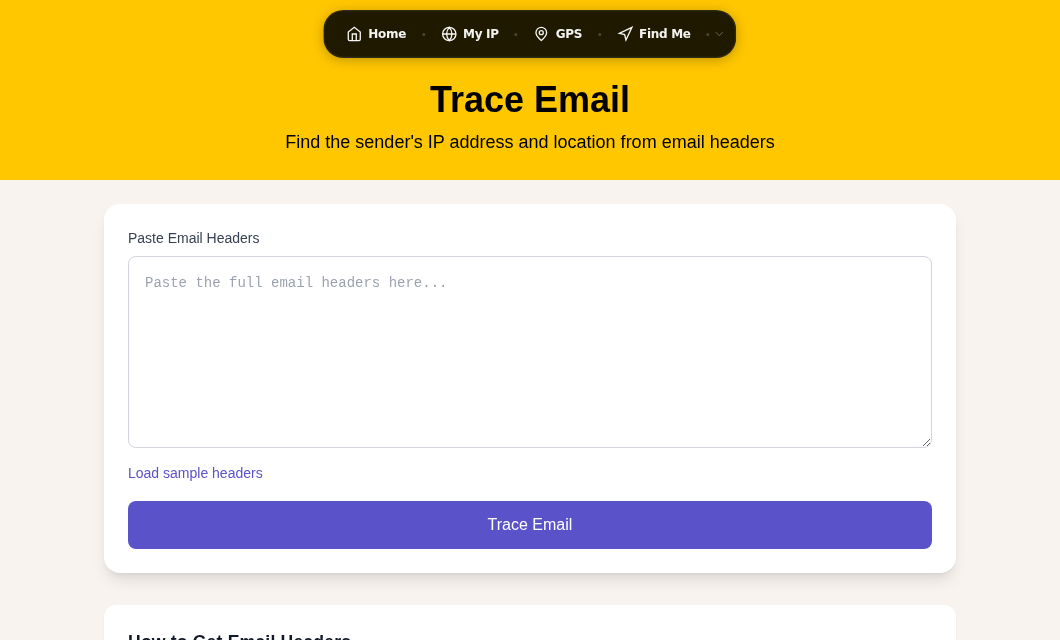
Once you have the raw text, paste it into the Trace Email tool for an instant automated analysis, or read it manually using the sections below.
Field 1: Return-Path (The Envelope Sender)
Return-Path: [email protected]The Return-Path is the actual address used during SMTP delivery, called the "envelope from." Bounce messages and non-delivery receipts go here, not to the From address. When the Return-Path domain does not match the From domain, that alone is a spoofing signal.
In our example, Return-Path says paypa1-security.net (with the numeral 1 in place of the letter l) while the From field at the bottom claims paypal.com. Those are completely different domains.
Field 2: The Received Chain
Received: from mail-out.paypa1-security.net (mail-out.paypa1-security.net [185.220.101.47])
        by mx.recipient.com with ESMTP id x9si2847013qkj.88
        for [email protected];
        Tue, 01 Jul 2026 08:14:22 -0700 (PDT)
Received: from webmail-host.paypa1-security.net (localhost [127.0.0.1])
        by mail-out.paypa1-security.net with ESMTP id c3ab9f12
        for [email protected];
        Tue, 01 Jul 2026 15:14:18 +0000
These are the most important headers for tracing where a message actually came from. Each mail server prepends its own Received line above the previous ones. To reconstruct the chronological delivery path, read Received headers from bottom to top. The lowest one is the first hop; the highest one is the last.
Each Received line contains several subfields:
from: The hostname and IP the sending server reported for itself (self-reported, can be forged).by: The server that received this hop. This is set by a server you trust, not the sender.with: The protocol used. ESMTP is plain; ESMTPS or ESMTPSA means TLS was used.for: The recipient address at this hop.- Timestamp: When this server processed the hop.
The IP address in square brackets after the hostname is the most reliable field because the receiving server (not the sender) writes it by observing the actual TCP connection. In our example, [185.220.101.47] is the true origin IP. Skip any Received entries that show only private RFC 1918 addresses (10.x.x.x, 172.16-31.x.x, or 192.168.x.x) as those are internal hops inside a data center.
Take that origin IP and run it through IP Lookup or Reverse DNS to see who owns it. In my testing, the fastest tell is when the IP's registered organization or country is completely unrelated to the claimed sender. An email claiming to be from a US bank but originating from a Tor exit node in Eastern Europe (which is exactly what 185.220.101.47 is) will stand out immediately.
Field 3: Authentication-Results
Authentication-Results: mx.recipient.com;
       spf=fail (domain of paypa1-security.net does not designate
            185.220.101.47 as permitted sender)
            smtp.mailfrom=paypa1-security.net;
       dkim=none;
       dmarc=fail (p=NONE) header.from=paypal.com
Your receiving mail server adds this header after running three independent authentication checks. Start here when evaluating any suspicious email. It takes 10 seconds to read and gives you the clearest signal of all.
SPF (Sender Policy Framework)
SPF checks whether the sending server's IP address is listed in the DNS TXT record that the Return-Path domain published as authorized to send on its behalf.
spf=pass: The origin IP is authorized. Good sign.spf=fail: The origin IP is explicitly not authorized. Strong spoofing indicator.spf=softfail: Probably not authorized; the domain owner has not set a strict policy.spf=neutralorspf=none: The domain has no opinion or no SPF record at all.
In our example, spf=fail tells us that even paypa1-security.net (the phishing domain, not the real paypal.com) never authorized this IP to send on its behalf. The attacker forgot to configure even basic SPF for their own domain.
DKIM (DomainKeys Identified Mail)
DKIM uses public-key cryptography. The sending server signs a hash of the message headers and body using a private key, then publishes the matching public key as a DNS TXT record. The receiving server fetches that public key and verifies the signature.
dkim=pass: The signature matches. The email genuinely came from the signing domain and was not altered in transit.dkim=fail: The signature does not verify. The email was either forged or modified after signing.dkim=none: No DKIM signature was present.
One important nuance: mailing lists and forwarding services often modify message bodies (by appending footers or rewriting headers), which breaks the cryptographic hash and causes dkim=fail on an otherwise legitimate forwarded message. The Authenticated Received Chain (ARC) protocol, defined in RFC 8617 and supported by Gmail, Outlook, and most major providers, preserves original authentication results across trusted intermediary hops to handle exactly this case.
In our phishing example, dkim=none means the attacker did not bother signing the message at all.
DMARC (Domain-based Message Authentication, Reporting, and Conformance)
DMARC ties SPF and DKIM together and adds a critical extra check: alignment. It verifies that the domain in the visible From header aligns with the domain authenticated by SPF or DKIM. This is what closes the gap that lets attackers pass SPF while showing a completely different From address.
dmarc=pass: Both alignment and at least one underlying check succeeded.dmarc=fail (p=REJECT): Authentication failed and the domain owner has told receivers to reject the message.dmarc=fail (p=QUARANTINE): Failed messages should go to spam.dmarc=fail (p=NONE): The domain is monitoring but not enforcing yet.
Our example shows dmarc=fail (p=NONE) header.from=paypal.com. The From header claims paypal.com, but the actual authentication was attempted against paypa1-security.net. Because they are completely different domains, DMARC alignment fails. The p=NONE means the real paypal.com domain's DMARC policy (at the time this record was queried) was not enforcing rejection; in practice, PayPal runs p=REJECT.
Field 4: From (The Forgeable One)
From: "PayPal Security" [email protected]The From header is the one field you should never trust on its own. There is no technical barrier to putting any address here. Any SMTP client can set it to anything. Every email client displays this field prominently, which is precisely why phishers rely on it.
Authentication-Results and Return-Path are the checks that expose what this field is hiding.
Field 5: Message-ID
Message-ID: [email protected]The Message-ID is generated by the originating server and should carry that server's domain. When the Message-ID domain matches the Return-Path domain but neither matches the From domain, that is further confirmation of spoofing. Legitimate mail from paypal.com would have a Message-ID ending in @paypal.com or a known email service provider they use.
Spotting Spoofing: The Quick Checklist
Work through these four checks in order. Stop as soon as you have a clear answer.
- Authentication-Results first.
spf=fail dkim=fail dmarc=failfrom a well-known domain ends the investigation. Report as phishing. - Return-Path vs. From. Different domains (especially lookalikes with typos or substituted characters) is the classic pattern.
- Origin IP vs. claimed sender. Pull the lowest public IP from the Received chain, run a Reverse DNS lookup, and compare the registered organization against the claimed
Fromdomain. You can also run a full WHOIS Lookup on the domain in the Return-Path. - Message-ID domain. Should match the sending infrastructure, not the claimed brand.
A legitimate email from a major organization will pass SPF, DKIM, and DMARC, and all the domains (From, Return-Path, Message-ID, DKIM signing domain) will be consistent. Note that DKIM can fail on legitimate forwarded mail or messages routed through mailing lists; always check the full context rather than a single field.
A Note on Modern Sender Requirements
Since early 2024, Google and Yahoo have required all bulk senders (5,000 or more messages per day) to have SPF and DKIM configured, with DMARC mandatory as well. Microsoft followed with similar requirements for Outlook.com senders starting in 2025. This means legitimate large senders almost all pass these checks now, which makes failures even more meaningful as a phishing signal.
Preserve Headers When Reporting
If you need to report a phishing email to your IT team, your ISP, or a service like the Anti-Phishing Working Group ([email protected]), always include the full original headers. A screenshot of the message body is not useful for investigation. The headers are the evidence.
FAQ
How do I find where an email really came from?
Open the raw headers in your email client (Gmail: three-dot menu, "Show original"; Outlook web: three-dot menu, "View message source"). Find the lowest Received header that contains a public IP address in square brackets. That IP is the true origin server. Use an IP Lookup tool to see who owns it and where it is located.
What does spf=fail mean in email headers?
SPF fail means the server that delivered the email is not listed in the DNS SPF record that the sending domain published as authorized to send on its behalf. This is a strong indicator of a spoofed or unauthorized message, though it can also happen when email is forwarded through a service that does not preserve the original sending IP.
Can the From address in an email be faked?
Yes. The From address displayed in your email client can be set to any value by whoever sends the message. It requires no verification at the SMTP level. This is why SPF, DKIM, and DMARC exist: they authenticate the actual sending infrastructure and domain alignment, not just the display address.
Why does DKIM sometimes fail on legitimate emails?
DKIM computes a cryptographic hash of the message at the time of signing. If anything changes afterward, including a footer appended by a mailing list, a disclaimer added by a corporate mail gateway, or any body modification by a forwarding service, the hash no longer matches and DKIM fails. This is a known limitation. The ARC (Authenticated Received Chain) protocol was designed to preserve original authentication results across trusted intermediaries to reduce false failures.
How do I use email headers to report phishing?
Copy the full raw headers (not a screenshot) before doing anything else. Include them in your report to your IT or security team, forward the full message to [email protected] (Anti-Phishing Working Group), or use your email provider's built-in phishing report button. The Received chain and Authentication-Results are the fields investigators rely on most.
Sources
- RFC 5321: Simple Mail Transfer Protocol
- RFC 8617: The Authenticated Received Chain (ARC) Protocol
- Cloudflare: What are DMARC, DKIM, and SPF?
- Gmail Help: Trace an email with its full header
- DMARC Report: Does DKIM break for forwarded emails and mailing lists?
- Microsoft Learn: Email authentication in Microsoft 365

WhatIsMyLocation Team
Our team of network engineers and web developers builds and maintains 25+ free networking and location tools used by thousands of users every month. Every article is reviewed for technical accuracy using real-world testing with our own tools.
Related Articles
Try Our Location Tools
Find your IP address, GPS coordinates, and more with our free tools.