
Summarise this article with:
Try This First
If you only do one thing, flush your DNS cache and switch to a public resolver like 1.1.1.1. Those two steps fix the majority of DNS failures in under two minutes. If they don't, the ranked fixes below will walk you through every other layer, from your router to your ISP.
You open your browser, type a URL, and get "Server Not Found," "This site can't be reached," or the Chrome-specific DNS_PROBE_FINISHED_NXDOMAIN. Your internet is active, you can reach IP addresses directly, but domain names won't resolve. That is a DNS failure. DNS (Domain Name System) translates domain names like example.com into the IP addresses computers actually use. When that translation breaks, websites become unreachable even though the underlying connection is fine.
Where to Start: Quick Diagnostic
Run these in Command Prompt (Windows) or Terminal (macOS/Linux) before picking a fix. The results tell you exactly which layer is broken.
| Test | Works? | What it means |
|---|---|---|
ping 8.8.8.8 | Yes | Internet is up; DNS is broken |
ping 8.8.8.8 | No | Broader connectivity problem, not DNS |
nslookup google.com | Yes | DNS works; browser may be the issue |
nslookup google.com 1.1.1.1 | Yes, but above fails | Your default DNS server is broken |
nslookup google.com 192.168.1.1 | No | Router DNS is failing |
If ping 8.8.8.8 works but nslookup google.com fails, skip straight to Fix 1 or Fix 3. If the router test fails, go to Fix 2.
Fix 1: Flush Your DNS Cache
Your OS caches DNS lookups to speed up repeat visits, and stale cached records cause failures even when the domain works fine elsewhere.
This is the fastest fix and resolves a surprising number of problems. Test immediately after by reloading the failing domain.
Windows:
ipconfig /flushdnsmacOS (Ventura, Sonoma, Sequoia, Tahoe):
sudo dscacheutil -flushcache; sudo killall -HUP mDNSResponderYou won't see any output on success. That is normal.
Linux (systemd-based, modern):
sudo resolvectl flush-cachesOn older systems where resolvectl isn't available, use sudo systemd-resolve --flush-caches instead.
Chrome's internal DNS cache (separate from the OS): Navigate to chrome://net-internals/#dns and click Clear host cache. Then go to chrome://net-internals/#sockets and click Flush socket pools. Do this in addition to the OS flush.
After flushing: retry the failing domain. If it loads, a stale record was the culprit and you're done.
Fix 2: Restart Your Router Properly
A proper power-cycle, not just pressing the reset button, clears DHCP leases, ARP tables, and routing state that can corrupt DNS assignments.
- Unplug the router from the wall (a soft reboot via the button often cycles too quickly)
- Wait 30 full seconds so capacitors drain and memory clears
- Power back on and wait 2 minutes for full initialization before testing
This resolves problems caused by routers assigning incorrect or expired DNS server addresses to connected devices via DHCP, and it clears a degraded DNS resolver state inside the router itself.
After restarting: retry the diagnostic commands above. If nslookup google.com now works, the router was the culprit.
Fix 3: Switch to a Public DNS Server
If your ISP's DNS server is down, slow, or filtering domains, switching to a public resolver bypasses the problem entirely. This is often the most impactful long-term change.
| DNS Provider | Primary | Secondary | Notes |
|---|---|---|---|
| Cloudflare | 1.1.1.1 | 1.0.0.1 | Consistently the fastest globally, strong privacy |
| 8.8.8.8 | 8.8.4.4 | Reliable, but Google logs queries | |
| Quad9 | 9.9.9.9 | 149.112.112.112 | Blocks known malware domains |
| OpenDNS | 208.67.222.222 | 208.67.220.220 | Optional content filtering |
My rule: use Cloudflare (1.1.1.1) for personal devices. It ranks fastest in independent benchmarks and commits to not selling query data.
Windows:
- Control Panel > Network and Internet > Network Connections
- Right-click your active connection > Properties
- Select Internet Protocol Version 4 (TCP/IPv4) > Properties
- Choose "Use the following DNS server addresses"
- Primary:
1.1.1.1, Secondary:1.0.0.1 - Click OK and close all windows
macOS:
- System Settings > Network > [your connection] > Details > DNS
- Click + and add
1.1.1.1, then1.0.0.1 - Remove old DNS entries > click OK
Android (9 and later):
Settings > Network & internet > Advanced > Private DNS > Private DNS provider hostname > enter one.one.one.one
Samsung devices use a different path: Connections > More Connection Settings > Private DNS.
iOS (per Wi-Fi network):
Settings > Wi-Fi > tap the (i) next to your network > Configure DNS > Manual > Add Server > enter 1.1.1.1 and 1.0.0.1 > Save.
Note: iOS per-network DNS only applies to that Wi-Fi network. You need to repeat the steps for each network you use.
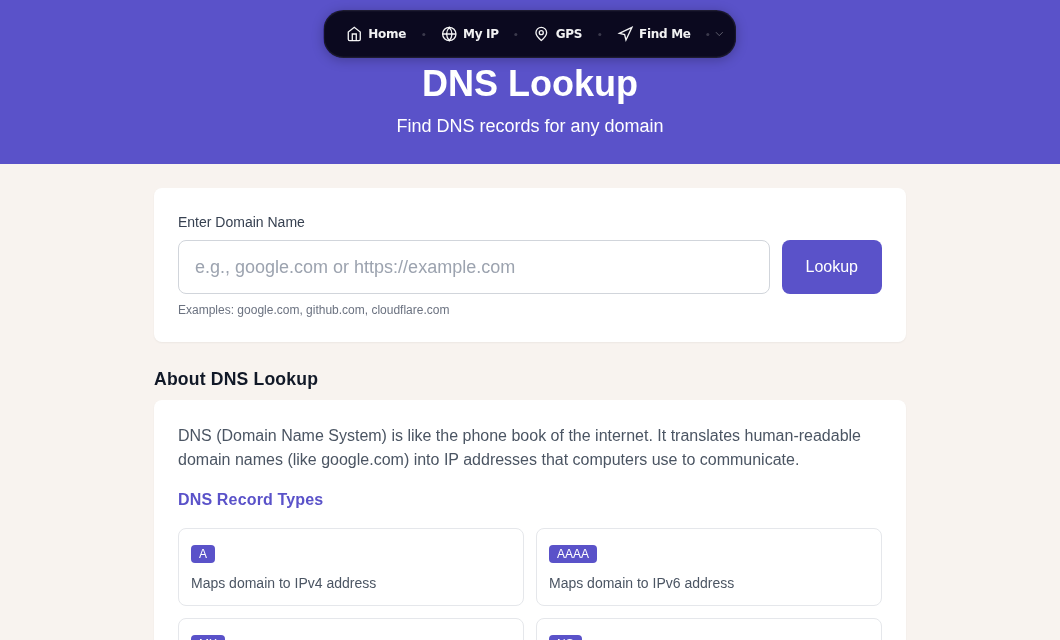
You can verify the change worked using our DNS Lookup tool, which shows which resolver answered your query.
After switching: run nslookup google.com 1.1.1.1 and compare the result to nslookup google.com. If the first works and the second doesn't, your ISP's DNS is the problem.
Fix 4: Release and Renew Your IP Address
A corrupted DHCP lease can assign incorrect DNS server addresses to your device. Releasing and renewing forces a fresh assignment.
Windows:
ipconfig /release
ipconfig /renew
macOS: System Settings > Network > [Connection] > Renew DHCP Lease
Linux:
sudo dhclient -r && sudo dhclientAfter renewal, confirm the DNS servers look right:
- Windows:
ipconfig /alland check "DNS Servers" - Linux/macOS:
cat /etc/resolv.conf
After renewing: retry the failing domain. If a wrong DNS server was assigned before, this corrects it.
Fix 5: Check for DNS Hijacking
Malware commonly redirects DNS queries to attacker-controlled servers that return wrong results or silently fail. Signs include:
- Redirects to unexpected pages when you type a URL directly
- SSL certificate warnings on sites that normally work without them
- Some sites work but others are unreachable for no clear reason
Run nslookup google.com and look at the "Server" line in the output. It should show your router's IP or the DNS you configured. An unfamiliar IP address there is a red flag.
Use our DNS Lookup tool to query a known domain and verify the result matches what authoritative records show.
If you suspect hijacking:
- Run a malware scan (Windows Defender or Malwarebytes)
- Log into your router (usually
192.168.1.1or192.168.0.1) and check the DNS settings under WAN configuration - If those settings look changed or unfamiliar, factory-reset the router immediately
After scanning: re-run nslookup google.com and confirm the Server line now shows a trusted IP.
Fix 6: Disable IPv6 Temporarily
Some ISPs have incomplete or broken IPv6 DNS infrastructure. When your device prefers IPv6 DNS and the ISP's IPv6 resolver is degraded, resolution fails even though IPv4 works fine.
Windows:
- Control Panel > Network Connections > right-click connection > Properties
- Uncheck Internet Protocol Version 6 (TCP/IPv6)
- Click OK
macOS: System Settings > Network > [Connection] > Details > TCP/IP > Configure IPv6: Link-local only
If this resolves the problem, report it to your ISP or continue using a public DNS provider. Cloudflare's IPv6 addresses (2606:4700:4700::1111 and 2606:4700:4700::1001) work reliably if you want to keep IPv6 enabled.
After disabling: reload the failing domain. If it resolves, your ISP has an IPv6 DNS problem.
Fix 7: Inspect Your Hosts File
The hosts file lets the OS resolve specific domains without querying DNS at all, and it overrides everything. Malware frequently modifies it to redirect legitimate domains to wrong or null addresses.
File locations:
- Windows:
C:\Windows\System32\drivers\etc\hosts - macOS/Linux:
/etc/hosts
A healthy hosts file contains only a few lines like these:
127.0.0.1       localhost
::1             localhost
Open the file in a text editor with admin privileges. Delete any lines pointing legitimate domains (google.com, cloudflare.com, your bank) to unexpected IP addresses.
After editing: retry the domain. Hosts file changes take effect immediately, no restart needed.
Fix 8: Enable DNS over HTTPS
If your ISP actively filters or intercepts DNS queries, DNS over HTTPS (DoH) routes queries through an encrypted HTTPS connection that ISPs cannot easily inspect or block. This is also useful on networks you don't fully trust, like public Wi-Fi.
Chrome: Settings > Privacy and security > Security > Use secure DNS > With: Cloudflare (1.1.1.1)
Firefox: Settings > Privacy & Security > scroll to "DNS over HTTPS" > Enable using: Default Protection
Edge: Settings > Privacy, search and services > Use secure DNS > Choose a service provider: Cloudflare
For system-wide encrypted DNS on every app and device, see the full DNS over HTTPS guide.
After enabling: verify with our DNS Lookup tool. Your resolver should now show Cloudflare or whichever DoH provider you chose.
When All Fixes Fail: Check for an ISP Outage
Sometimes the problem is not yours. ISPs experience DNS outages lasting minutes to hours. Signs:
- Every device on your network is affected at once
- The problem started suddenly with no changes on your end
- Switching to Google or Cloudflare DNS (Fix 3) resolves it right away
Check your ISP's status page or their social media for outage reports. You can also check Cloudflare Radar's outage center at radar.cloudflare.com/outage-center for a broader view of regional internet disruptions. Switching to a public DNS resolver (Fix 3) will bypass the outage immediately.
Quick Reference: Fix Priority
| Fix | Time needed | Resolves |
|---|---|---|
| Flush DNS cache | 30 seconds | Stale cached records |
| Restart router | 3 minutes | Corrupted DHCP/router DNS state |
| Switch DNS server | 5 minutes | ISP DNS down or filtering |
| Release/renew IP | 1 minute | Bad DHCP lease |
| Check for hijacking | 5-10 minutes | Malware-modified DNS |
| Disable IPv6 | 2 minutes | Broken ISP IPv6 DNS |
| Inspect hosts file | 2 minutes | Malware-modified overrides |
| Enable DoH | 3 minutes | ISP DNS interference |
If you've worked through all eight fixes and DNS still doesn't resolve, the failure is likely in network infrastructure above your router. Understanding what DNS records actually contain can also help you distinguish between a resolver failure and a broken domain configuration on the server side.
FAQ
What does DNS_PROBE_FINISHED_NXDOMAIN mean?
This is a Chrome-specific error message. NXDOMAIN stands for "Non-Existent Domain," meaning the DNS resolver could not find any record for the domain you requested. It can mean the domain doesn't exist, the domain recently changed its DNS records and your cache has stale data, or your DNS resolver is failing. Firefox and Safari show the same underlying problem as a generic "Server Not Found" message. Flushing your DNS cache (Fix 1) and switching to a public resolver (Fix 3) are the first things to try.
Why does DNS work on my phone but not my laptop?
Your phone likely picked up different DNS settings than your laptop, or it is using mobile data instead of your Wi-Fi connection. Check whether your phone is on the same network. If it is, compare the DNS server addresses: on the laptop, run ipconfig /all (Windows) or cat /etc/resolv.conf (macOS/Linux) and look at the DNS Servers field. Release and renew your DHCP lease (Fix 4) on the laptop to force it to pick up fresh settings.
How do I know if my ISP is blocking a domain through DNS?
Query the domain through your ISP's default resolver, then query it through Cloudflare directly: run nslookup example.com versus nslookup example.com 1.1.1.1. If the second returns a valid IP address and the first does not (or returns a different IP pointing to a block page), your ISP is interfering with that domain's DNS resolution. Switching to a public DNS server or enabling DNS over HTTPS bypasses the block.
Does changing DNS affect my internet speed?
DNS changes affect how quickly domain names are resolved, not the speed of data transfer itself. Switching from a slow ISP resolver to a fast public one like Cloudflare 1.1.1.1 can make sites feel faster to load because the initial lookup step completes sooner. The effect is most noticeable on sites you visit for the first time or after your cache clears. Data download and upload speeds are unaffected.
Can a VPN cause DNS resolution failures?
Yes. VPNs route DNS queries through their own resolvers, and if the VPN's DNS server is down or misconfigured, every domain lookup fails even though your internet connection technically works. If you are using a VPN and experiencing DNS failures, try disconnecting it and retesting. If DNS resolves without the VPN, the problem is with the VPN provider's resolver. You can also check for VPN-related DNS issues using a DNS leak test, which shows which resolver is actually handling your queries.
Sources

WhatIsMyLocation Team
Our team of network engineers and web developers builds and maintains 25+ free networking and location tools used by thousands of users every month. Every article is reviewed for technical accuracy using real-world testing with our own tools.
Related Articles
Try Our Location Tools
Find your IP address, GPS coordinates, and more with our free tools.