
Summarise this article with:
To stop websites from tracking your location, deny the browser permission prompt first, add a VPN to mask your IP address, and use an anti-fingerprint browser for the strongest protection. No single step covers all three tracking channels, so the layers build on each other.
Here is the full defense stack, ordered easiest to strongest:
- Layer 1 (easiest): Deny the Geolocation API in your browser - stops precise GPS/WiFi location
- Layer 2 (stronger): Use a VPN - masks IP-based location, which requires no permission at all
- Layer 3 (strongest): Use an anti-fingerprint browser - blocks timezone/font/GPU signals that infer location without any API
Read on for the exact steps at each layer.
How Websites Track Your Location
There are three distinct tracking channels, each requiring a different countermeasure.
The Browser Geolocation API
This is the permission popup you have seen: "example.com wants to know your location." It uses GPS, nearby WiFi networks, and cell towers to place you within meters. You have full control: deny the prompt once, or block it globally for all sites. The API only works over HTTPS, per the W3C specification.
IP-Based Geolocation
Every website sees your IP address, no permission needed. IP geolocation maps your IP to a city-level location using registration records and network routing data. According to MaxMind, city-level accuracy for US IP addresses reaches roughly 66% within a 50 km radius. It is imprecise but always on, which is why browser settings alone are not enough. For more on what sites can do with this, see what someone can do with your IP address.
Browser Fingerprinting
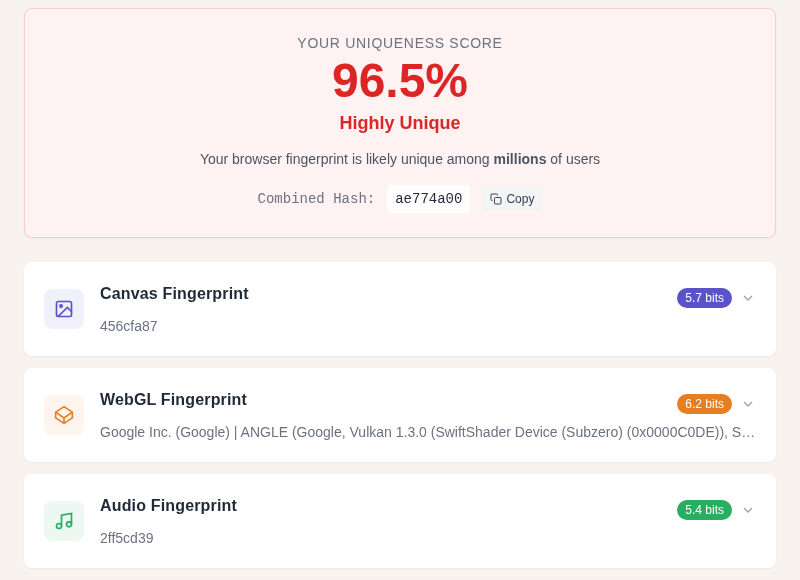
Your browser leaks a combination of signals silently: timezone, language, installed fonts, screen resolution, GPU model, and audio hardware. Individually these are ordinary. Combined, they form a profile that can infer your region and, when cross-referenced with an IP, your approximate location, with no permission prompt and no cookie. Check your own fingerprint at our browser fingerprint tool.
Layer 1: Block the Geolocation API in Your Browser
This is the first thing to do and takes under two minutes.
Google Chrome (Desktop: Windows, Mac, Linux)
- Click the three-dot menu and select Settings
- Go to Privacy and security, then Site settings
- Select Location
- Choose Don't allow sites to see your location
To revoke permissions already granted: in that same Location panel, find any site listed under "Allowed," click it, and set it to Block.
Google Chrome (Android)
- Tap the three-dot menu, then Settings
- Tap Site settings, then Location
- Toggle Location off
Google Chrome (iPhone and iPad)
On iOS, Chrome does not control location independently. Location for Chrome is managed by iOS:
- Open the Settings app
- Scroll to Chrome
- Tap Location, then select Never
Mozilla Firefox (Desktop)
Option A: GUI (recommended)
- Click the hamburger menu and select Settings
- Go to Privacy & Security
- Scroll to Permissions and click Settings next to Location
- Check Block new requests asking to access your location
- Click Save Changes
Option B: about:config (advanced)
Type about:config in the address bar, accept the warning, then search for permissions.default.geo and set its value to 2. This silently denies all location requests without showing a prompt. Firefox 150 (April 2026) also added a setting geo.provider.ms-windows-location that you can set to false if Firefox is pulling location from Windows on your PC.
Apple Safari (macOS)
- Open Safari, then Settings (Cmd + comma)
- Click the Websites tab
- Select Location in the sidebar
- Set "When visiting other websites" to Deny
You can also block at the OS level for an extra layer:
- Open System Settings, go to Privacy & Security, then Location Services
- Find Safari and deselect it or set it to Never
Apple Safari (iPhone and iPad)
- Open Settings, go to Privacy & Security, then Location Services
- Scroll to Safari Websites
- Select Never
Note: iOS Safari offers no "Always Allow" option for websites, only "Allow Once" and "Allow While Using App," which is a deliberate privacy design by Apple.
Microsoft Edge (Desktop)
- Click the three-dot menu and select Settings
- Go to Cookies and site permissions
- Click Location
- Toggle off Ask before accessing (this blocks all requests silently)
To block at the Windows OS level:
- Open Windows Settings
- Go to Privacy & security, then Location
- Toggle off Location services (blocks all apps including Edge), or scroll to find Microsoft Edge and toggle just that
My rule: set the global default to Block and only re-enable on the specific tool or service that genuinely needs it, like a navigation app.
Layer 2: Use a VPN to Mask IP-Based Location
After blocking the Geolocation API, your IP address is still exposed. A VPN routes your traffic through a server in another location, so websites see the VPN server's IP rather than yours. This is the only practical defense against IP geolocation without browser settings changes.
What to look for in a VPN for location privacy:
| Feature | Why it matters |
|---|---|
| Audited no-logs policy | Confirms the provider does not store your traffic |
| Kill switch | Blocks all traffic if the VPN disconnects, preventing IP exposure |
| DNS leak protection | Prevents DNS queries from revealing your real location |
| WebRTC leak protection | Stops WebRTC from bypassing the VPN tunnel |
VPNs that have published independent audits of their no-logs policies include Mullvad, ProtonVPN, and IVPN. For a fuller comparison see our best VPN services guide.
What a VPN does not block: It does not stop the browser Geolocation API, GPS on mobile, or browser fingerprinting. Layer 1 and Layer 2 work together. You can test whether your VPN is actually masking your IP at our VPN leak test.
Also check for WebRTC leaks: Chrome has no built-in WebRTC protection as of 2026 and requires an extension like uBlock Origin. Firefox lets you disable WebRTC via about:config by setting media.peerconnection.enabled to false. Brave blocks WebRTC leaks by default. Learn more in our WebRTC leak explained guide.
Layer 3: Reduce Fingerprint-Based Location Inference
Even with the API blocked and a VPN running, your timezone and language settings reveal your region. Combined with your GPU model, screen resolution, and installed fonts, a fingerprint profile can narrow down your location to a country and often a city cluster.
Browsers with built-in anti-fingerprinting:
- Brave: Randomizes canvas, audio, and WebGL fingerprints by default. Blocks WebRTC by default.
- Firefox with Resist Fingerprinting (RFP): Set
privacy.resistFingerprintingtotrueinabout:config. This normalizes timezone to UTC, limits font enumeration, and spoofs screen size. - Tor Browser: Maximally normalized fingerprint. Significant performance and compatibility cost; best for high-risk scenarios.
Simpler steps that reduce leakage without switching browsers:
- Install uBlock Origin (available for Chrome, Firefox, and Edge) and enable its WebRTC IP leak prevention
- Set your browser timezone to UTC if your threat model warrants it
- Use private/incognito windows to prevent persistent storage, though this does not stop fingerprinting during the session (read more: does incognito hide your location?)
Verify Your Settings Are Working
After applying any of these layers, confirm they are actually in effect.
- Visit our IP tool to see what IP and location websites currently see for you. If the VPN is running, it should show the VPN server's city, not yours.
- Visit our GPS coordinates tool and deny the location prompt. Confirm the page shows access denied rather than your coordinates.
- Run our VPN leak test to check for IP and DNS leaks while connected.
Frequently Asked Questions
Does blocking location in Chrome stop all tracking?
No. Blocking the Chrome Geolocation API stops the precise GPS-level tracking that requires a permission prompt. It does not affect IP-based geolocation, which every website sees automatically, or fingerprinting, which reads browser signals silently. You need Layer 2 (VPN) and Layer 3 (anti-fingerprint browser) to address those.
Can websites track my location on iPhone without permission?
Safari and iOS lock down the Geolocation API behind a permission prompt, and iOS itself controls whether any browser can access location. If you set Safari Websites to Never in Settings, no website can get GPS or WiFi location from the API. However, IP-based tracking and fingerprinting still work. Your IP address reveals your approximate city to every server you connect to, regardless of iOS privacy settings.
Does a VPN completely hide my location from websites?
A VPN replaces your real IP address with the VPN server's IP, which is the most effective way to defeat IP geolocation. But it does not hide timezone, language, or browser fingerprint signals, and it does not affect the Geolocation API if you have already granted a site permission. Use a VPN together with the browser permission block for better coverage. Also confirm there are no WebRTC leaks with our VPN leak test.
Will incognito mode stop websites from tracking my location?
Incognito or private browsing mode prevents your browser from saving history, cookies, and cached data after the session ends. It does not stop a site from reading your IP address or from receiving location via the Geolocation API if you click Allow during the session. Fingerprinting works the same in incognito as in a regular window. For details, see does incognito hide your location?.
What is the strongest way to prevent all location tracking in a browser?
The fullest protection combines all three layers: block the Geolocation API (Layer 1), connect through an audited no-logs VPN with WebRTC protection (Layer 2), and use Brave or Firefox with Resist Fingerprinting enabled (Layer 3). Tor Browser goes further by normalizing the fingerprint across all users, but at a significant speed and compatibility cost. No method is absolute, but this combination closes the main practical tracking channels.
Sources

WhatIsMyLocation.org Team
Our team of network engineers and web developers builds and maintains 25+ free networking and location tools used by thousands of users every month. Every article is reviewed for technical accuracy using real-world testing with our own tools.
Related Articles
Try Our Location Tools
Find your IP address, GPS coordinates, and more with our free tools.