
Summarise this article with:
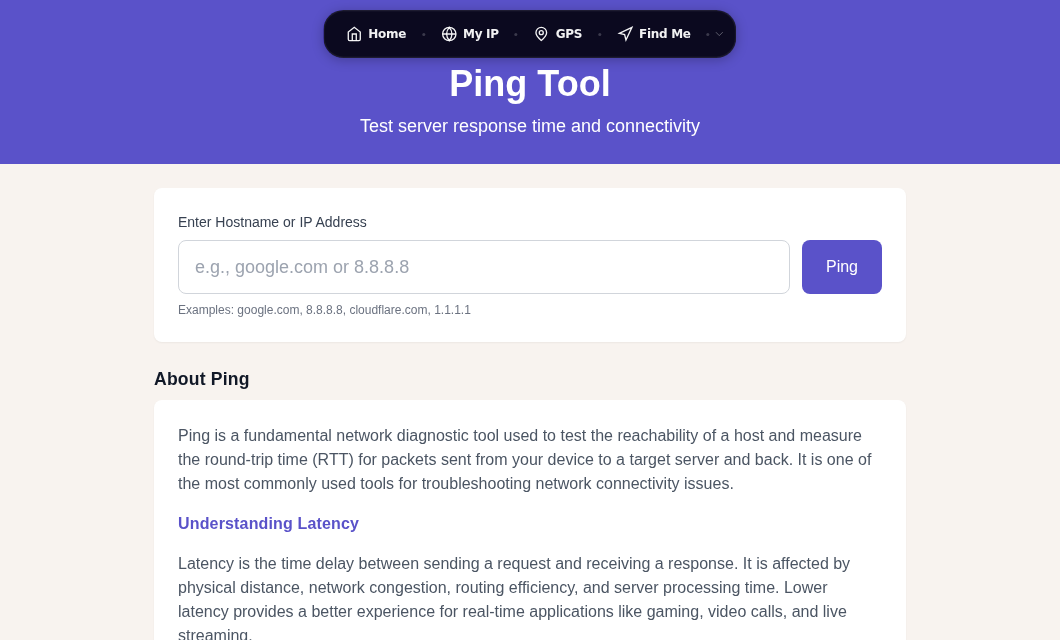
Ping works by sending an ICMP echo request to a destination and measuring how long the reply takes. That round-trip time, shown in milliseconds, tells you more about your network than almost any other single number. Use our Ping Tool for a browser-based test, or open a terminal and follow along below.
Reading Real Ping Output First
Here is a typical ping session on macOS or Linux:
PING google.com (142.250.80.46): 56 data bytes
64 bytes from 142.250.80.46: icmp_seq=0 ttl=118 time=11.4 ms
64 bytes from 142.250.80.46: icmp_seq=1 ttl=118 time=12.1 ms
64 bytes from 142.250.80.46: icmp_seq=2 ttl=118 time=11.8 ms
64 bytes from 142.250.80.46: icmp_seq=3 ttl=118 time=13.2 ms

--- google.com ping statistics ---
4 packets transmitted, 4 packets received, 0.0% packet loss
round-trip min/avg/max/stddev = 11.4/12.125/13.2/0.660 ms
Walk through it field by field.
The header line
56 data bytes is the payload size Linux and macOS send by default. Windows sends 32 bytes. Neither number affects the test meaningfully, but the difference explains why the same host looks like "56(84) bytes" on Linux and "32 bytes" on Windows.
icmp_seq
This is the sequence number of each packet, starting at 0 or 1 depending on the OS. If you see gaps, you have packet loss. A run that jumps from icmp_seq=2 to icmp_seq=4 means packet 3 never came back. Gaps here are the clearest sign of a network problem.
ttl
TTL stands for Time to Live. Every router along the path decrements it by 1. If the counter reaches 0 before the packet arrives, the router drops it and sends back an ICMP Time Exceeded message. This prevents loops from clogging the internet forever.
The starting TTL depends on the destination operating system:
| OS | Default initial TTL |
|---|---|
| Linux / macOS | 64 |
| Windows | 128 |
| Cisco / network gear | 255 |
In the output above, ttl=118 means the reply started at 128 (a Windows-stack endpoint, or a cloud host using 128) and crossed approximately 10 router hops to reach you. You can count exact hops with Traceroute.
time
This is your round-trip latency in milliseconds. It is the single most watched number in any ping test. A rough reference for what it means in practice:
| RTT | What it feels like |
|---|---|
| Under 20 ms | Excellent, typical for same-region servers |
| 20-50 ms | Good, normal cross-country in the US |
| 50-100 ms | Acceptable, common intercontinental |
| 100-150 ms | Noticeable in fast-paced games and video calls |
| Over 150 ms | Conversations on VoIP start to feel delayed |
| Over 200 ms | Real-time applications degrade noticeably |
These thresholds align with guidance from the ITU and are consistent with what VoIP vendors publish: one-way latency under 150 ms is considered acceptable for natural conversation.
The statistics summary
round-trip min/avg/max/stddev = 11.4/12.125/13.2/0.660 ms
- min/avg/max are self-explanatory.
- stddev (standard deviation) is your jitter indicator. A stddev of 0.660 ms here is excellent. If your stddev is larger than your avg, something is very wrong.
Jitter is the variation in ping times between packets. A consistent 80 ms ping is better for VoIP and gaming than a ping that bounces between 10 ms and 150 ms. Jitter above 20-30 ms starts to cause choppy audio and dropped frames in real-time applications. Low stddev means the network is stable even if the base latency is not perfect.
Packet loss is separately captured in X% packet loss. The industry threshold for VoIP and gaming is under 1%. At 1-5%, audio glitches and game stutters become frequent. Above 5%, web pages slow noticeably and downloads stall. At 100%, the host is either down, unreachable, or blocking ICMP.
How Ping Works at the Packet Level
Now that you can read the output, here is what is actually happening under the hood.
ICMP: the protocol behind ping
Ping uses the Internet Control Message Protocol (ICMP), which operates at the network layer (Layer 3). It is not a transport protocol like TCP or UDP. Its job is to carry control messages between network devices, including error reports and the echo mechanism ping relies on.
Mike Muuss wrote the ping utility in December 1983 at the US Army Ballistic Research Laboratory after hearing Dr. Dave Mills describe using timed ICMP echo packets to measure path latency. He wrote it in a single evening. It has shipped with every major operating system ever since.
What happens when you ping
- Your computer sends an ICMP Echo Request. The packet has type=8 (echo request) and code=0. It includes an identifier, a sequence number, and a small payload.
- The packet is wrapped in an IP header with protocol field set to 1 (ICMP), your source IP, and the destination IP.
- The packet traverses the network, passing through routers that each decrement the TTL.
- The destination host receives the packet. If it is up and not blocking ICMP, its network stack processes it.
- The destination sends back an ICMP Echo Reply with type=0, code=0, containing the same identifier, sequence number, and payload.
- Your computer receives the reply and subtracts the send time from the receive time. That difference is the RTT shown in each output line.
Anatomy of a ping packet
- IP header (20 bytes): version, TTL, protocol=1, source IP, destination IP
- ICMP header (8 bytes): type, code, checksum, identifier, sequence number
- Payload (variable): 32 bytes on Windows, 56 bytes on Linux/macOS by default, echoed back verbatim so you can verify data integrity
Advanced Ping Techniques
Finding MTU problems
You can adjust the payload size to detect MTU mismatches, which often explain partial page loads and VPN issues:
# Linux/macOS: send 1472-byte payload (1500 bytes total = standard Ethernet MTU), no fragmentation
ping -s 1472 -M do google.com

# Windows equivalent
ping -l 1472 -f google.com
If you get "fragmentation needed" errors, a device on the path cannot handle full-size frames.
Flood ping for local stress testing
# Linux only, requires root. Never use on networks you do not own.
sudo ping -f -c 1000 192.168.1.1
Sends packets as fast as possible and reports statistics at the end. Useful for finding intermittent packet loss under real load.
Logging with timestamps
ping -D google.com | tee ping_log.txtPrepends a UNIX timestamp to each line. Run this for 30 minutes while you reproduce an issue and you have a timestamped record to compare against other logs.
Common Problems and What They Mean
"Request timed out"
No reply arrived within the timeout window. Possible causes: the host is down, a firewall is blocking ICMP (extremely common on cloud servers), or there is severe packet loss on the path. A failed ping does not prove the host is down. The website may load fine in a browser while ping fails, because many operators block ICMP as a matter of policy. Use Port Scanner to check whether the host is accepting TCP connections.
High jitter (inconsistent times)
Common causes: Wi-Fi interference, network congestion during peak hours, an overloaded switch or router, or ISP rate-shaping. High jitter hits real-time applications harder than high base latency.
Gradually climbing latency
If your ping times rise steadily over the course of the session, that is a classic bufferbloat symptom. Bufferbloat happens when your router's packet queue grows unchecked during a large upload or download, inflating latency for everything else sharing the connection. In my testing, starting a large upload while running ping 8.8.8.8 is the fastest way to expose it: if latency spikes by hundreds of milliseconds the moment the upload starts, enable Smart Queue Management (fq_codel or CAKE) in your router settings.
Interpreting ping when comparing against speed tests
Ping measures latency, not bandwidth. A 1 ms ping to your router does not mean your internet is fast. A 150 ms ping to a gaming server does not mean your download speed is slow. Run a Speed Test alongside ping when you want the full picture: latency from ping, throughput from the speed test.
Ping vs. Other Tools
- Use Traceroute when you know there is latency but need to find which hop is the cause.
- Use Speed Test when you need actual throughput numbers, not just latency.
- Use Port Scanner when ping fails but you suspect the host is up and just blocking ICMP.
- Use DNS Lookup to rule out a DNS resolution problem before blaming latency.
FAQ
Why does ping show "Request timeout" even though the website loads fine?
Many web servers and cloud hosts block ICMP traffic intentionally. The server is still serving HTTP/HTTPS on port 80 and 443, but it silently drops echo requests. A timeout on ping tells you ICMP is blocked, not that the host is offline. Use a browser or run a port check on port 443 to confirm whether the host is actually reachable.
What is a good ping for gaming?
For competitive play, under 30 ms is ideal. Between 30-80 ms is playable for most game types. Above 100 ms you will notice input lag, and above 150 ms fast-paced games become difficult. Jitter matters as much as the average: a stable 60 ms beats a bouncy 10-150 ms for online games.
What does the TTL number in ping output tell you?
TTL tells you how many router hops the packet has left when it arrives. You can estimate the hop count by subtracting the observed TTL from the likely starting value. Linux and macOS targets start at TTL 64; Windows targets start at 128. If you see TTL=54 and the target is a Linux server, it crossed approximately 10 hops. Traceroute shows the exact path.
How much packet loss is too much?
Any packet loss above 0% warrants investigation. Under 1% is the accepted threshold for VoIP and gaming. Between 1-5%, you will hear glitches in calls and see stutters in games. Above 5%, downloads stall and pages load slowly. At 100%, the host is unreachable or blocking ICMP.
Can I use ping to test Wi-Fi vs. wired performance?
Yes. Ping your router's IP address (usually 192.168.1.1 or 192.168.0.1) first to isolate your local network. If that ping is low and stable, any extra latency when pinging the internet is coming from your ISP or the path beyond your router. High jitter to your own router, but not to an ethernet-connected device, points to Wi-Fi interference as the source.
Sources

WhatIsMyLocation Team
Our team of network engineers and web developers builds and maintains 25+ free networking and location tools used by thousands of users every month. Every article is reviewed for technical accuracy using real-world testing with our own tools.
Related Articles
Try Our Location Tools
Find your IP address, GPS coordinates, and more with our free tools.