
Summarise this article with:
Quick Verdict
A "Connected" badge is not proof of protection. Your VPN can show a green status while your real IP address, DNS queries, WebRTC connections, or IPv6 traffic escape the tunnel silently. The only way to know your VPN is working is to run the checks below, which take under two minutes.
Why VPNs Fail Without Warning
Before running the tests, know the five most common failure modes:
- Kill switch disabled: when the VPN connection drops, your traffic reverts to your real IP with no warning.
- DNS leak: your browser sends DNS queries outside the tunnel, letting your ISP see every domain you visit even if your IP is masked.
- WebRTC leak: browsers use WebRTC for video calls and peer connections, and this can expose your real IP directly to sites and scripts even with a VPN active.
- IPv6 leak: many VPNs only tunnel IPv4. If your ISP supports IPv6, your device may send IPv6 traffic unprotected alongside the VPN connection.
- Split tunneling misconfigured: some apps or domains are intentionally excluded from the tunnel, and if misconfigured, that boundary can bleed DNS or raw traffic.
The 5-Check Verification Pass
Check 1: Confirm Your Public IP Has Changed
This is the baseline. Before connecting your VPN, visit My IP Address and note your IP address and ISP name. Then connect your VPN and reload the page.
What you need to see: a completely different IP address, a location matching your chosen VPN server, and an ISP name belonging to the VPN provider's hosting company, not your home ISP.
If your original IP still appears, disconnect, restart the VPN app, and try a different server. If the problem persists, switching protocols often helps. WireGuard is the fastest option and is now supported by every major provider. OpenVPN over TCP port 443 works best on networks with aggressive firewalls. IKEv2 handles mobile network switching well due to its MOBIKE extension.
Check 2: Run a DNS Leak Test
Even when your IP changes, DNS queries can still route through your ISP's resolvers. Your ISP then sees every domain you visit, even though your traffic itself is encrypted.
Go to DNS Leak Test and run the test. The tool sends multiple resolver queries and identifies which DNS servers handle them.
What you need to see: all DNS servers should belong to your VPN provider, not your ISP. You should not see your ISP's name anywhere in the results.
If you detect a DNS leak:
- Enable "Use VPN DNS" or "Block DNS outside tunnel" in your VPN app settings (most providers offer this toggle).
- On Windows, open Command Prompt and run
ipconfig /flushdnsafter connecting to clear stale resolver cache. - If your antivirus or security suite has its own DNS component (Norton 360 and Avast both do), it can override the VPN's DNS settings. Try disabling the antivirus DNS feature temporarily to confirm.
- On Windows 11, disable IPv6 on the active adapter (see Check 4) to stop a common secondary DNS leak path.
- Re-run the test to confirm the fix.
Check 3: Check for WebRTC Leaks
WebRTC is built into every major browser for real-time audio and video. The problem is that WebRTC can discover and transmit your real local and public IP addresses directly to websites, bypassing the VPN tunnel entirely.
In my testing, this is the leak most VPN users never think to check, and some free VPNs do nothing to block it.
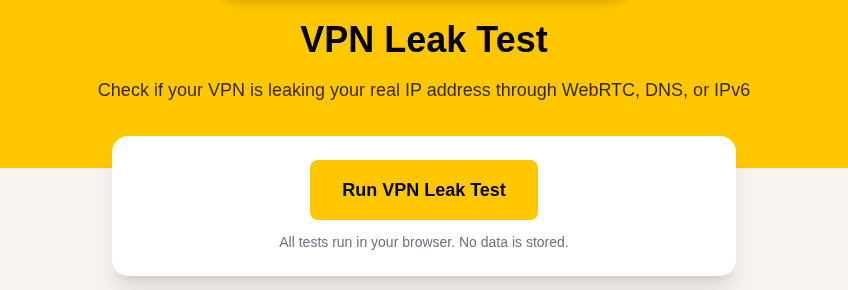
Run our VPN Leak Test, which checks WebRTC behavior alongside your visible IP.
What you need to see: no WebRTC IP leak detected. Only the VPN's IP should appear, if any address is shown at all.
If WebRTC is leaking your real IP:
- Firefox: type
about:configin the address bar, accept the warning, search formedia.peerconnection.enabled, and toggle it tofalse. This fully disables WebRTC, which also stops browser-based video calls. - Chrome: Chrome has no built-in toggle for WebRTC. Install the "WebRTC Leak Prevent" extension, or enable WebRTC blocking in uBlock Origin's settings under Privacy.
- Brave: go to
brave://settings, open "Privacy and security," scroll to "WebRTC IP Handling Policy," and set it to "Disable Non-Proxied UDP." This is the best balance for Brave: it keeps video calls working while preventing IP discovery.
Check 4: Verify IPv6 Is Not Leaking
Most VPNs were built around IPv4. If your ISP supports IPv6, your device may route IPv6 traffic outside the tunnel alongside the protected IPv4 connection. Sites that support IPv6 can then see your real IPv6 address and ISP identity even when your IPv4 is hidden.
Return to My IP Address while connected to your VPN. If an IPv6 address is shown that belongs to your home ISP rather than your VPN provider, you have an IPv6 leak.
What you need to see: either no IPv6 address at all (the VPN blocks it entirely), or an IPv6 address that belongs to the VPN provider.
If IPv6 is leaking:
- First, check your VPN app for an "IPv6 leak protection" toggle. Most current major providers include this.
- If your provider doesn't offer it, disable IPv6 on your operating system:
- Windows 11: Settings > Network & Internet > Advanced network settings > click your adapter > Edit > uncheck "Internet Protocol Version 6 (TCP/IPv6)."
- macOS: open Terminal and run networksetup -setv6off Wi-Fi (replace Wi-Fi with your interface name if different).
- Linux: add net.ipv6.conf.all.disable_ipv6 = 1 to /etc/sysctl.conf, then run sudo sysctl -p.
- Reload My IP Address to confirm no IPv6 address appears.
Check 5: Test the Kill Switch
A kill switch monitors your VPN tunnel and blocks all internet traffic the moment the tunnel drops, preventing your real IP from appearing during reconnection. My rule: never assume a kill switch works until you test it yourself.
Recent independent testing found that roughly half of VPNs have kill switches that fail under real-world connection drops. Even well-known providers sometimes ship kill switches that are off by default.
How to test:
- Connect to your VPN and confirm checks 1-4 pass.
- Open My IP Address in your browser.
- In your VPN app, manually disconnect or force a server switch.
- Immediately try to reload the page or open a new tab.
What should happen: the page should fail to load entirely, showing a "no internet" or network error while the VPN reconnects. Your real IP should never appear, even for a fraction of a second.
If your real IP flashes during the switch, the kill switch is either disabled or not functioning at the OS firewall level. Check your VPN settings and confirm the kill switch is explicitly enabled. A reliable provider like NordVPN uses a system-level firewall kill switch that blocks all traffic at the OS level when the tunnel goes down.
Quick Verification Checklist
Run this after every VPN connection:
- IP address changed, verified at My IP Address
- No DNS leaks, verified at DNS Leak Test
- No WebRTC leaks, verified at VPN Leak Test
- No IPv6 leaks, confirmed at My IP Address
- Kill switch tested and working
What to Do If Leaks Keep Appearing
If you consistently find leaks after these checks:
- Update the VPN app: older versions frequently have patched leak bugs.
- Switch protocols: WireGuard is the default best choice for speed and security. OpenVPN TCP is the fallback for restrictive networks.
- Change servers: individual servers can be misconfigured or overloaded.
- Contact support: reputable providers offer live chat and can verify your configuration.
- Switch providers: if leaks persist after all of the above, the VPN's implementation is untrustworthy. Free VPNs are particularly prone to leaking because they cut costs on the infrastructure and code quality that leak prevention requires.
For a deeper look at how IP-based location tracking works, see Why Your IP Location Shows the Wrong City and GPS vs IP Location: What's the Difference.
FAQ
Why does my real IP still show with a VPN turned on?
The most common causes are: the VPN connection failed to establish properly (try disconnecting and reconnecting), the VPN app is only routing some traffic due to split tunneling, or the IP shown is your IPv6 address and your VPN only tunnels IPv4. Run My IP Address before and after connecting to identify which address is exposing you.
Does a VPN kill switch need testing, or can I trust that it's on?
You need to test it. Kill switches are often disabled by default, and independent testing has found that roughly half of VPN providers have kill switches that don't work reliably under real connection drops. Follow the manual disconnect test in Check 5 above to confirm yours actually blocks traffic when the tunnel goes down.
What is a DNS leak and why does it matter if my IP is hidden?
A DNS leak happens when your browser sends domain name queries to your ISP's DNS servers instead of routing them through the VPN tunnel. Even if your public IP is masked, your ISP can still see every domain you visit. Run DNS Leak Test to check. If you see your ISP's servers in the results, you have a leak.
Can a WebRTC leak expose my location even with a VPN?
WebRTC can reveal your real local IP address and your public IP address directly to websites via JavaScript, even when your VPN is active. This works at the browser level, bypassing the network tunnel. The fix depends on your browser: toggle off media.peerconnection.enabled in Firefox, use an extension in Chrome, or set WebRTC IP Handling to "Disable Non-Proxied UDP" in Brave.
Should I disable IPv6 entirely on my computer to stop VPN leaks?
Disabling IPv6 is the most reliable fix if your VPN does not offer built-in IPv6 leak protection. It stops the leak by removing the traffic path entirely. The downside is that some services perform better over IPv6, so the preferred approach is to enable IPv6 leak protection in your VPN app first. If that is not available, disabling IPv6 on your network adapter (Windows) or via networksetup -setv6off (macOS) is safe for most users.
Sources
- https://www.dnsleaktest.com/how-to-fix-a-dns-leak.html
- https://www.rtings.com/vpn/tests/kill-switch-robustness
- https://support.brave.app/hc/en-us/articles/360017989132-How-do-I-change-my-Privacy-Settings
- https://www.expressvpn.com/blog/how-to-disable-webrtc/
- https://www.expressvpn.com/blog/disable-ipv6-for-better-vpn-protection/
- https://www.top10vpn.com/what-is-a-vpn/vpn-leaks/

WhatIsMyLocation Team
Our team of network engineers and web developers builds and maintains 25+ free networking and location tools used by thousands of users every month. Every article is reviewed for technical accuracy using real-world testing with our own tools.
Related Articles
Try Our Location Tools
Find your IP address, GPS coordinates, and more with our free tools.