
Summarise this article with:
Pick Your Goal
These are two different problems with different solutions. Your public IP is the address websites see when you browse. Your local IP is the address your router assigns you inside your home network. If you're trying to unblock a site, look less trackable, or escape an IP ban, you need a new public IP. If you're fixing a network conflict, naming a device reliably, or troubleshooting your home setup, you need a new local IP.
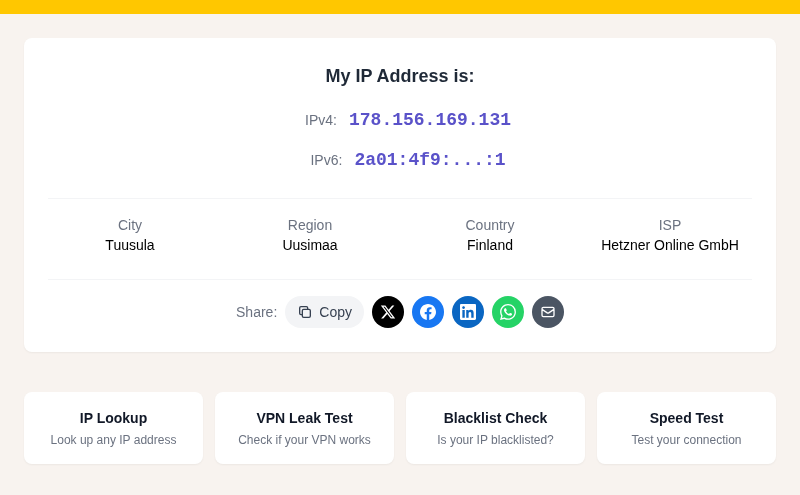
Use our My IP Address tool to check your current public IP before you start. After you apply any method below, come back to confirm the change worked.
Goal 1: New Public IP
These methods change the IP address that external websites, apps, and services see.
Use a VPN (Fastest, Most Reliable)
When you connect to a VPN, every site you visit sees the VPN server's IP instead of yours. The change is instant, you can pick a server location in dozens of countries, and your traffic is encrypted between your device and the VPN server.
My rule for everyday use: a VPN is the only method that actually works every time for changing your public IP without waiting or calling anyone.
Steps:
- Sign up with a reputable provider (NordVPN, ProtonVPN, Mullvad, ExpressVPN are common choices).
- Install the app on your device.
- Connect to any server.
- Verify at My IP Address.
What to keep in mind:
- Some websites block known VPN IP ranges, especially streaming services and banking sites. Switching to a different server in the same country often resolves this.
- Free VPNs typically log your activity, cap your data, and may sell your traffic to advertisers. Treat them the same way you'd treat any unknown proxy.
- Run a DNS leak test after connecting. A DNS leak means your queries are still going to your ISP's resolvers even while your visible IP changed, which can partially identify your traffic.
- A VPN changes your visible IP for all traffic. It does not hide your activity from the VPN provider itself.
See also: How to Hide Your IP Address and Is My VPN Working?
Restart Your Router (Free, Unreliable)
Most residential ISPs assign dynamic public IPs. In theory, unplugging your router forces your ISP's DHCP server to release your address and assign a fresh one when you reconnect.
In practice, this often does not work:
- DHCP lease times vary widely. If your ISP issues 24-hour or longer leases, your router re-requesting the same address often gets it back.
- Sticky assignments. Many ISPs use "sticky" dynamic IPs, technically dynamic but practically stable. Even after a restart, the same address is handed back because you are the only customer on your node or the ISP's allocation logic simply favors continuity.
- CGNAT. If your ISP uses carrier-grade NAT (common with cable and some fiber providers), you and many neighbors are all sharing the same public IPv4 anyway. Restarting does nothing to change it.
If you still want to try: unplug the router from power (not just a soft reboot), wait at least 5 minutes, then plug it back in and check. Leaving it off overnight has a better chance of triggering a lease expiry. But there is no guarantee. Check with My IP Address after.
For a deeper explanation of why this does or does not work, see Static vs Dynamic IP Addresses.
Toggle Airplane Mode (Mobile Only)
On a phone or tablet using cellular data, switching airplane mode off and back on disconnects from the cell tower and asks for a fresh DHCP assignment from your carrier when you reconnect.
Steps:
- iPhone: Open Control Center, tap the airplane icon, wait 15-30 seconds, tap it again.
- Android: Pull down the notification shade, tap Airplane Mode, wait 30 seconds, tap it again.
After reconnecting, check your mobile IP at My IP Address.
Two real caveats. First, this only works on cellular, not Wi-Fi. Your Wi-Fi IP comes from your router; toggling airplane mode does not touch it. Second, if your carrier uses CGNAT (which most mobile carriers do for IPv4), you and thousands of subscribers share the same public IPv4 address. In that case, your "IP" will change to a different address behind the same shared pool, which may or may not look different to the sites you visit.
Contact Your ISP
If restarts are not working and you need your actual public IP changed (not masked), call your ISP and ask. Explain that your current IP has been blacklisted or that you are experiencing routing issues. Most ISPs can manually release and reassign your IP in minutes once you reach a technician. Expect hold time.
This is the right path if: you have a static IP (changing it may require updating your service plan), or you specifically need a clean IP reputation rather than just a different visible address.
Goal 2: New Local IP
These methods change the IP your router assigns to your device inside your home network. This does not change your public IP. It is useful for resolving conflicts, releasing an address that another device has claimed, or locking a device to a predictable address.
Release and Renew Your DHCP Lease
This asks your router for a fresh local address. The result is a different number on your home network, such as moving from 192.168.1.105 to 192.168.1.112. Your public IP, as seen by websites, is unchanged.
On Windows (Command Prompt as Administrator):
ipconfig /release
ipconfig /renew
On macOS:
- Open System Settings > Wi-Fi (or Ethernet).
- Click Details next to your active connection.
- Go to the TCP/IP tab.
- Click Renew DHCP Lease.
Or use Terminal:
sudo ipconfig set en0 DHCPReplace en0 with your interface name if needed (en1 for Ethernet on some Macs).
On Linux:
sudo dhclient -r
sudo dhclient
On systems using NetworkManager (Ubuntu, Fedora, most modern distros), use:
nmcli connection down "Wired connection 1"
nmcli connection up "Wired connection 1"
Replace the connection name with yours (run nmcli connection show to list them).
Assign a Static Local IP
A static local IP means your device always gets the same address on your home network, which is useful for print servers, home servers, or port forwarding rules. There are two ways to do it.
Option A: DHCP reservation on your router (recommended). Log into your router's admin panel (usually 192.168.1.1 or 192.168.0.1), find the DHCP reservation or "address binding" section, and pin your device's MAC address to a specific IP. The router continues to manage DHCP; your device just always gets the same address. This survives device reinstalls and works even when you cannot change device-level settings.
Option B: Manual static IP on the device.
Windows 11:
- Open Settings > Network and Internet > Ethernet (or Wi-Fi).
- Click the network, then Edit next to IP assignment.
- Switch from Automatic (DHCP) to Manual, then enable the IPv4 toggle.
- Enter your chosen IP address (pick one outside your router's DHCP range to avoid conflicts, e.g., 192.168.1.200 if the DHCP pool runs up to 192.168.1.199), your subnet mask (255.255.255.0), and your gateway (usually your router's IP).
- Save.
macOS:
- Open System Settings > Network.
- Select your connection and click Details.
- Under the TCP/IP tab, set Configure IPv4 to Manually.
- Enter your chosen IP, subnet mask, and router address.
iPhone / iOS 18:
- Go to Settings > Wi-Fi.
- Tap the (i) next to your network.
- Under IPv4 Address, tap Configure IP, then select Manual.
- Enter your IP, subnet mask, and router address.
Android:
- Go to Settings > Wi-Fi, long-press your network, then tap Modify network (or tap the gear icon).
- Expand Advanced options.
- Change IP settings from DHCP to Static.
- Enter your chosen IP, gateway, and subnet prefix length (24 for most home networks).
- Save.
Note: if you switch Wi-Fi networks, you will need to redo this on the new network. DHCP reservation at the router level is usually cleaner for permanent setups.
Verify the Change Worked
After applying any method:
- Visit My IP Address to see your current public IP.
- If the goal was a new public IP, compare with what you noted before. If it is the same, the method did not work.
- If using a VPN, run a VPN leak test to confirm there are no DNS leaks exposing your real location.
- Use IP Lookup to see the geographic location associated with your new IP.
A Few Things Worth Knowing
Changing your IP does not erase your digital footprint. Websites use cookies, browser fingerprinting, and account-based tracking that persists across IP changes. If you need broader privacy, combine an IP change with clearing cookies and using a privacy-focused browser.
Some services tie security to your IP. Banks and work VPNs sometimes trigger re-authentication or lock you out if your IP changes mid-session. Expect this and have your credentials ready.
Changing your IP is legal. Using it to circumvent bans, commit fraud, or violate terms of service is not. Use these tools to solve real technical problems, not to evade consequences.
Common Questions
Does restarting my router always change my public IP?
No. Whether your public IP changes depends on your ISP's DHCP lease duration and assignment policy. If your lease has not expired, your router is very likely to receive the same address back. ISPs also commonly use sticky assignments that give you the same IP repeatedly even after the lease technically expires. Leaving the router off overnight improves the odds, but there is no guarantee.
Why does my IP stay the same after running ipconfig /release and /renew?
The ipconfig /release and /renew commands operate at the local network level. They ask your router for a new private IP, not a new public IP. Your public IP is assigned to your router by your ISP, and no Windows command changes that. To change your public IP, you need to act at the router level (power cycle), use a VPN, or contact your ISP directly.
Does toggling airplane mode change my IP?
On cellular only, and not always. When you reconnect to the cell tower your carrier may assign a different IP from its pool. If your carrier uses CGNAT, the change may be invisible because many subscribers share the same public IPv4 address anyway. On Wi-Fi, airplane mode has no effect on your IP at all.
Can my ISP give me a new IP address permanently?
They can assign you a different IP, but unless you pay for a static IP it is still a dynamic assignment and may change again in the future. A static IP from an ISP is a paid add-on and guarantees the same address long term.
Will a VPN show a different IP in every country?
Yes, as long as you pick a server in that country. Most VPN providers offer servers in dozens of countries. The IP you get belongs to the VPN provider's address pool in that location, not to your ISP. Sites see the VPN server's IP and infer your location from it, not from your real location.
Sources

WhatIsMyLocation Team
Our team of network engineers and web developers builds and maintains 25+ free networking and location tools used by thousands of users every month. Every article is reviewed for technical accuracy using real-world testing with our own tools.
Related Articles
Try Our Location Tools
Find your IP address, GPS coordinates, and more with our free tools.