Summarise this article with:
The Short Answer
Split tunneling lets you pick which apps travel through your VPN and which connect directly to the internet. It speeds things up and stops your bank from flagging a foreign login, but it also leaves unprotected traffic exposed on public Wi-Fi and creates DNS leak opportunities that most users never think to check. Whether it helps or hurts depends on your threat model and how carefully you configure it.
What Split Tunneling Actually Does
When your device connects to a VPN, the client rewrites your routing table so all traffic exits through the encrypted tunnel. Split tunneling installs more specific routes that override only a subset of that traffic:
- App-based rules intercept packets at the process level before they reach the network stack.
- URL/domain-based rules use local DNS overrides to route specific hostnames through or around the tunnel.
- IP-range rules insert specific CIDR blocks into the routing table pointing at the VPN interface.
Traffic not matched by any rule follows your default route: your ISP's gateway, with no encryption.
Inverse split tunneling flips the logic. Instead of listing which apps use the VPN, you list which ones skip it. Everything else gets tunneled automatically. This is often easier to manage because you typically have fewer apps you want to exclude than apps you want to protect.
When Split Tunneling Helps
Keeping local network access alive
Corporate intranets, NAS drives, and printers need a local IP connection. If all your traffic exits through a VPN server in another country, your router stops seeing your device on the local subnet. Split tunneling exempts those connections so printing and file access keep working without disconnecting the VPN.
Recovering speed for high-bandwidth tasks
Every tunneled byte passes through an extra server and gets encrypted and decrypted. Streaming 4K video, large game updates, and cloud backups all take a noticeable hit when routed through a VPN. Excluding your streaming app from the tunnel lets it use your full ISP bandwidth while sensitive browsing stays protected. In my testing, VPN-routed streaming can cut effective throughput by 30-50% compared to a direct connection, though the exact number varies by server load and distance.
Stopping banks from locking you out
Many financial institutions flag logins that originate from foreign IP addresses and will lock or challenge the account. Split tunneling routes your banking app directly so your bank sees the real IP it expects.
Reducing load on shared VPN servers
Low-risk traffic like OS update servers and CDN-served video adds volume to your VPN provider's infrastructure without buying you meaningful privacy protection. Routing those directly frees up tunnel capacity for traffic that actually needs it.
When Split Tunneling Hurts
Split tunneling is a deliberate security tradeoff, not a free lunch. These are the real risks:
DNS leaks become more likely. If your split tunnel sends DNS queries outside the VPN, your ISP can log every domain you look up even when the page content itself travels through the tunnel. Always verify this with the DNS Leak Test tool after any split tunnel configuration change.
WebRTC can expose your real IP. A browser running outside the tunnel may reveal your actual IP address via WebRTC signaling. See WebRTC Leak Explained for how this works and how to test for it.
Malware takes advantage of unprotected paths. Any process running outside the tunnel operates without VPN encryption. On a hostile network (coffee shop Wi-Fi, hotel ethernet), an infected app can communicate freely with command-and-control infrastructure without passing through any security inspection point. Security researchers have documented this as one of the more serious enterprise risks of split tunneling.
It disables corporate traffic visibility. If you work with sensitive company data, your IT team almost certainly needs all traffic to pass through their perimeter security. Split tunneling bypasses data-loss-prevention sensors and denies the security team network telemetry for the unprotected paths. Many employers explicitly prohibit it on managed devices.
Your real IP is visible to every direct app. This is obvious once stated but often forgotten: any app you exclude from the tunnel sees and leaks your real IP address.
Platform Support in 2026
True per-app split tunneling is a feature of the VPN client and the underlying OS. The table below reflects verified support as of mid-2026.
| Platform | NordVPN | ExpressVPN | Mullvad |
|---|---|---|---|
| Windows | Yes (app-based) | Yes (app-based) | Yes (app-based) |
| Android | Yes (app-based) | Yes (app-based) | Yes (app-based) |
| macOS | No | Yes, macOS 11+ via Qt app (not App Store) | Yes, macOS 13+ |
| iOS | No | No | No |
| Linux | Port/subnet allowlist only | Not verified | Yes (app-based) |
iOS has an OS-level limitation that blocks per-app split tunneling for all consumer VPNs. Apple's Network Extension framework allows a VPN to be either per-app or system-wide with IP routing, but not both at once. The result is that no consumer iOS VPN app can offer true app-based split tunneling. Some providers offer domain-based exclusions as a partial substitute, and enterprise MDM setups can do more, but for personal use on iPhone and iPad the feature is simply unavailable.
On macOS, the situation improved in late 2024 and 2025. Mullvad added split tunneling in app version 2024.4, requiring macOS 13 (Ventura) or newer. ExpressVPN added it to their Qt-based Mac app, which requires macOS 11 (Big Sur) or newer and must be downloaded from the ExpressVPN website rather than the App Store, because App Store policies prohibit the system extensions the feature depends on.
How to Set Up Split Tunneling: NordVPN on Windows
NordVPN's Windows implementation is one of the most straightforward, so this serves as a reference for the concept.
- Open the NordVPN app and click the gear icon in the bottom-left corner.
- Select Split Tunneling from the settings menu.
- Toggle the feature on.
- Choose your mode: Disable VPN for selected apps (standard) excludes specific apps; Enable VPN only for selected apps (inverse) tunnels only what you pick.
- Click Add Apps and select the applications you want routed outside (or inside) the tunnel. The list shows currently running apps; use Browse apps to find others.
- Connect to a VPN server.
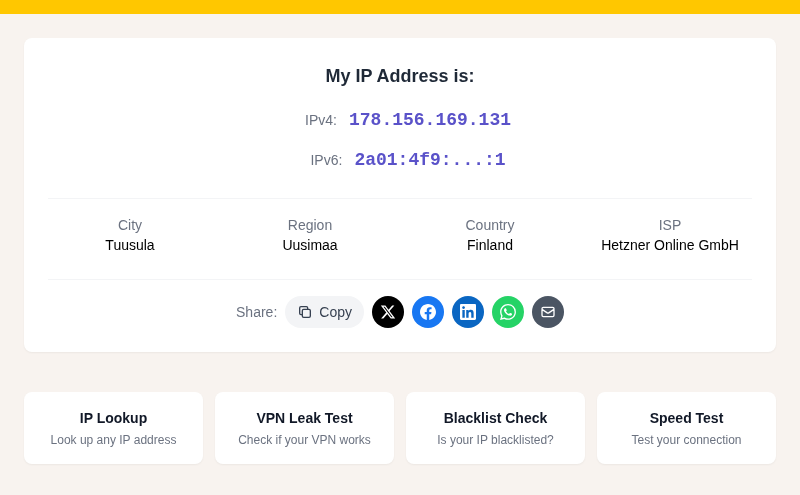
- Verify: open a tunneled browser and check your IP with the My IP tool. Open an excluded app and confirm it shows your real IP. Run the DNS Leak Test to confirm DNS queries are not leaking.
On Android, the path is: Profile, then the settings icon, then toggle Split Tunneling on, then Manage apps to add exclusions.
Split Tunneling vs. Kill Switch: Use Both Together
These two features solve different problems and work together without conflict.
| Feature | What It Does | When It Activates |
|---|---|---|
| Split tunnel | Routes specific traffic outside the VPN intentionally | Always, by design |
| Kill switch | Blocks all traffic if the VPN connection drops | Only on unplanned disconnection |
A VPN kill switch protects your tunneled traffic from accidental IP exposure when the VPN drops. It does not interfere with apps you have intentionally excluded from the tunnel, because those apps are meant to bypass the VPN. You should almost always run both.
For a broader look at VPN features, see VPN Protocols: WireGuard vs OpenVPN vs IKEv2.
Recommended Configuration for Most Personal Users
Exclude from VPN (direct connection):
- Banking and brokerage apps
- Government portals (tax filing, benefits sites)
- Work intranet or corporate VPN client (avoid double-VPN conflicts)
- Smart home device control apps
- OS update services (Windows Update, Apple Software Update)
Keep inside the VPN tunnel:
- All browsers
- Email clients
- Messaging apps (Signal, WhatsApp, Telegram)
- Torrent clients
- Any app you do not specifically trust with your real IP
Start conservative. Exclude only what is actively broken by the VPN, and add apps to the exclusion list one at a time so you can isolate problems. Always re-run the DNS Leak Test after each change.
If you are trying to verify whether your VPN is actually working correctly for tunneled traffic, the VPN Leak Test tool checks both IP and DNS simultaneously.
Frequently Asked Questions
Does split tunneling slow down or speed up my internet?
Split tunneling typically speeds up total throughput by routing high-bandwidth, low-sensitivity traffic directly to your ISP instead of through the VPN server. The tunneled portion of your traffic may actually get faster too, because less competing traffic is using the VPN connection. The tradeoff is that anything sent outside the tunnel is unencrypted and associated with your real IP.
Is split tunneling safe to use on public Wi-Fi?
It depends on which apps you exclude. Any app routed outside the VPN on a public network sends unencrypted traffic over a shared connection that could be monitored. Banking apps are a common exclusion, and those typically use HTTPS, which provides transport encryption regardless of the VPN. The real danger is apps that use unencrypted protocols or that an attacker might compromise and redirect. On public Wi-Fi, be more conservative about what you exclude.
Can I use split tunneling on an iPhone or iPad?
Not with true per-app control. Apple's networking framework does not allow consumer VPN apps to implement app-based split tunneling on iOS or iPadOS. Some VPN apps offer domain-based exclusions as a limited substitute, but you cannot say "exclude only my banking app" at the app level. Enterprise environments using MDM have more options, but for personal use the feature is effectively unavailable on iOS.
Why is my bank still blocking my account even with split tunneling?
The most common reason is DNS. If your VPN's DNS resolver is handling your banking app's domain lookups, some financial services detect the VPN-associated DNS server and flag the session regardless of which IP the actual connection comes from. Check whether your split tunnel configuration excludes DNS for the affected app, or configure your device to use a non-VPN DNS resolver for excluded traffic. Also verify the exclusion rule saved correctly by checking which IP your banking app sees.
Does split tunneling prevent DNS leaks, or cause them?
It can cause them if misconfigured. When you route an app outside the VPN tunnel, its DNS queries may also travel outside the tunnel to your ISP's DNS resolver, exposing your browsing to your ISP even if the actual connection content is protected elsewhere. The safer setup is to force DNS queries for all apps through a privacy-respecting resolver regardless of whether the app itself is tunneled. After any configuration change, run the DNS Leak Test to confirm where your DNS queries are going.
Sources

WhatIsMyLocation Team
Our team of network engineers and web developers builds and maintains 25+ free networking and location tools used by thousands of users every month. Every article is reviewed for technical accuracy using real-world testing with our own tools.
Related Articles
Try Our Location Tools
Find your IP address, GPS coordinates, and more with our free tools.